Happy Horse 1.0 Video Model Guide for Video Editors
Happy Horse 1.0 can hand you a talking, sound-synced clip in one shot. The hard part is not generating it. The hard part is turning that clip into a finished reel, ad, or short that holds attention. This guide covers what the model does and how to move its output into an edit you control.
Most guides for a new video model stop at the prompt box. They teach you how to type a scene and hit generate, then leave you staring at a raw clip with no plan for it. That is the wrong place to stop. A generated clip is footage, not a finished video, and Happy Horse 1.0 gives you footage that already carries its own audio. The question that matters is what you do with it next: how you trim it, caption it, and cut it against other shots so it reads as a real reel or ad instead of a demo.
This guide walks through what Happy Horse 1.0 is, where it is strong, how to prompt it so the output survives an edit, and how to bring those clips into a timeline where you actually finish the work.
In short
- Generate a clip in Happy Horse 1.0 from a text prompt or a starting image.
- Download it and check the audio and lip-sync before you build anything around it.
- Drop it on a timeline, trim to the beat, and layer captions or titles on top.
- Stack your best variations into a reel or ad, then render a version for each platform.
Quick answer:
- Happy Horse 1.0 is Alibaba's video model that generates picture and synced audio together, from either text or a starting image.
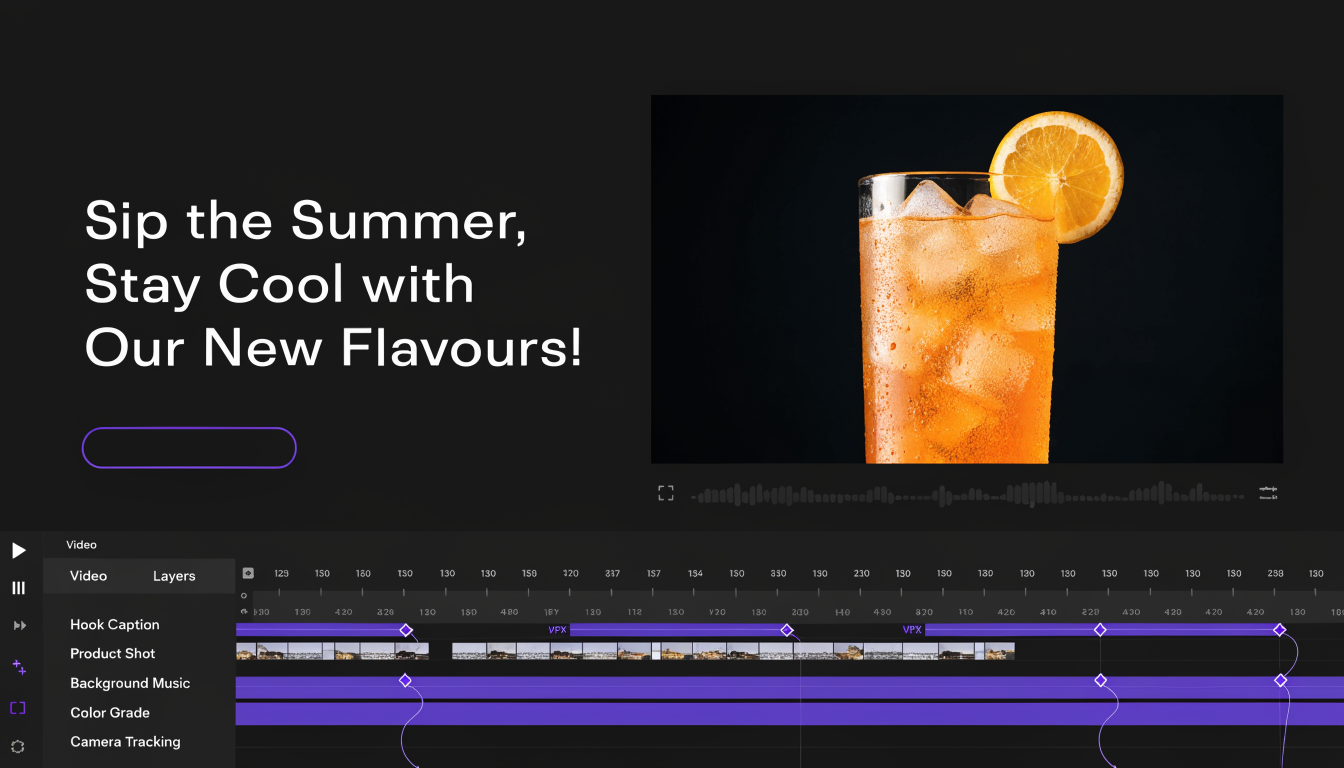
- Treat every clip as raw footage. Its real value shows once you trim it, caption it, and cut it against other shots on a timeline.
- Reported specs like clip length and resolution still vary between sources, so test a short clip before you plan a full project around any single number.
What Happy Horse 1.0 actually is
Happy Horse 1.0 (also written HappyHorse, or 快乐小马) is an AI video model that Alibaba's Taotian Future Life Lab confirmed on April 10, 2026. It first showed up anonymously on the Artificial Analysis Video Arena a few days earlier and climbed to the top of both the text-to-video and image-to-video rankings before Alibaba claimed it, which is where most of the early buzz came from.
The feature that sets it apart is joint audio and video generation. Instead of producing a silent clip and asking you to add sound later, it generates the picture and a matching soundtrack in one pass, including dialogue and lip-sync. That is useful and it is also the part you have to watch closest, because generated audio is harder to fix after the fact than a muted clip you score yourself. If you want a broader primer on how these models fit into a working pipeline, the guide to AI video generation covers the wider landscape.
It handles both text-to-video, where you describe a scene from scratch, and image-to-video, where you feed it a still frame and it animates from there. Image-to-video is the mode most editors reach for, because it lets you lock a look in a single frame first and then move it, rather than gambling the whole shot on a text description.
Where it is strong, and where to be careful
The honest picture matters more than the hype here, because a lot of the numbers floating around come from reseller pages rather than a first-party spec sheet. Here is what is worth trusting and what is not:
- Strong: synced audio and dialogue in one generation, so talking-head and character shots come out with lip movement already matched to the sound.
- Strong: image-to-video control, which gives you a reliable starting frame to art-direct before anything moves.
- Be careful: clip length and resolution are reported inconsistently across sources, with duration quoted as anything from a few seconds to fifteen. Do not plan a full sequence around a number you have not tested yourself.
- Be careful: the generated audio is baked into the clip. If the dialogue timing is slightly off, it is easier to mute the clip and rebuild the sound in your editor than to keep regenerating.
The takeaway is simple. Use it for short, self-contained shots with real motion and sound, then assume you will finish and polish those shots somewhere else.
Write prompts that survive the edit
Good prompts for an editor are not the same as good prompts for a screenshot. You want clips that cut together, so keep each generation short and single-purpose: one subject, one action, one camera move. A clip that tries to do three things at once is hard to trim into a sequence later.
When you plan to test several directions at once, generating one clip at a time gets slow fast. Running Happy Horse 1.0 through an AI workflow tool lets you queue a batch of prompt variations, keep track of which seed made which shot, and pull every result into one place before you decide what makes the cut.
A few habits that pay off in the edit: describe the audio you want as clearly as the picture, since the model generates both; name the shot type (close-up, wide, over-the-shoulder) so clips share a visual grammar; and leave a beat of stillness at the start and end of each clip so you have handles to trim against.
Bring the clips into your timeline
This is the step the ranking guides skip, and it is where the actual video gets made. Once you have a clip you like, the work is timeline work: trimming to the beat, layering type, and stacking shots so they read as one piece.
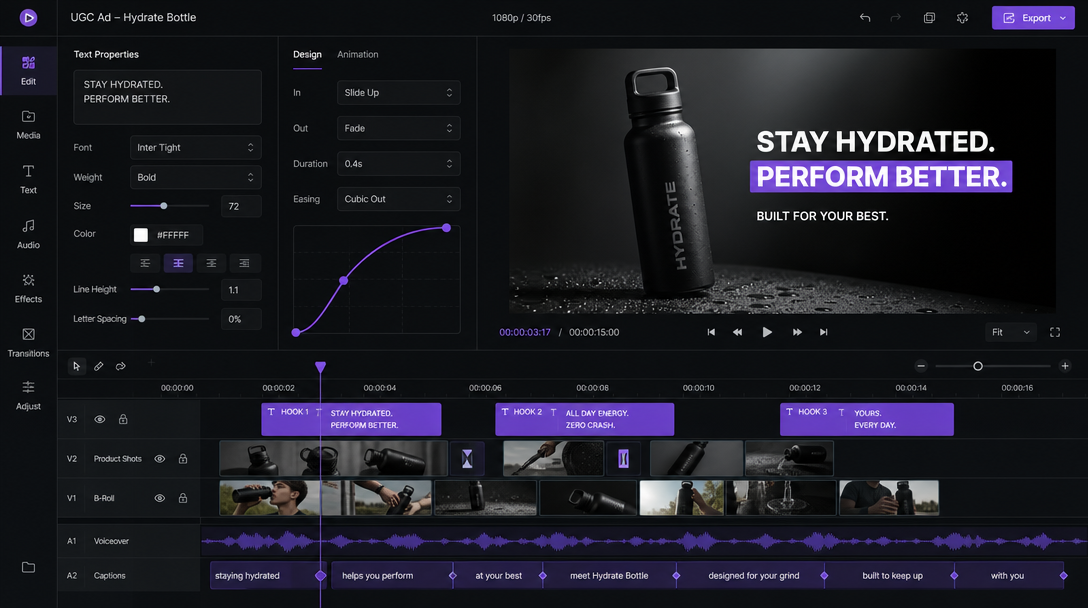
Start with captions. Even a clip that generated its own dialogue needs burned-in text for silent autoplay on social, so run it through a captioning pass and style the words to match the shot. The add subtitles to video tool handles the transcription and styling in one place, which saves you keying every line by hand.
Next, add your titles and motion text. A generated clip rarely arrives with a hook line or a product name on screen, and those are what carry the message. You can add animated text to video directly on the timeline and keyframe it in and out so it moves with the shot instead of sitting flat on top of it.
When a single clip is not enough, trim and sequence several generations into one flow. Because Happy Horse 1.0 clips are short by nature, most finished pieces are two to five of them cut together with matched pacing, which is exactly what a video compilation maker is built to assemble.
Turn raw clips into reels and UGC ads
The format decides the cut. A nine-by-sixteen reel wants fast pacing, big captions, and a hook in the first second, while a product ad wants a clear beat structure and a visible call to action. Generate your clips with the final aspect ratio in mind, then build the pacing on the timeline rather than hoping the model nails it.
For ads specifically, a synced-audio model is a real shortcut, because a talking spokesperson shot that used to need an actor can now start as a single generation. Drop that shot into a product video maker layout, cut it against B-roll and product frames, and you have the skeleton of a UGC-style ad without a shoot.
Once the cut works, add the finishing motion: transitions that match the energy, a lower third, a subtle zoom on the key moment. If you want a menu of moves to borrow from, the walkthrough on AI video effects shows a range of them applied on a real timeline.
Frequently asked questions
Is Happy Horse 1.0 free to use?
Access is mostly through third-party platforms and APIs rather than a single official app, and pricing quoted on those pages varies. Check the provider you plan to use for current rates, since the model is new and terms are still shifting.
Does Happy Horse 1.0 really generate audio with the video?
Yes, that is its headline feature. It produces the picture and a matching soundtrack in one pass, including dialogue and lip-sync. Treat the audio as a strong first draft and be ready to rebuild it in your editor if the timing is slightly off.
Can I use the clips for commercial video and ads?
That depends on the license terms of the platform you generate through, not on the model alone. Read the usage rights on your provider before you ship a paid ad, especially for client work.
How long can a Happy Horse 1.0 clip be?
Reported limits vary between sources, so generate a test clip on your chosen platform to confirm the real ceiling. Plan your edit around short shots either way, since short clips cut together more cleanly.
What do I do after generating a clip?
Treat it as footage. Trim it, caption it, add your titles, and cut it against other shots on a timeline. That editing pass is what turns a generated clip into a finished reel or ad.
The bottom line
Happy Horse 1.0 is a strong way to get short, sound-synced shots without a camera, but the model is only the first half of the job. The finished video comes from the edit: the trim, the captions, the titles, and the sequence you build. Generate with the cut in mind, keep your clips short and single-purpose, and do the real work on the timeline where you can control every frame.
Founder of Motionbox and Gluely. Building tools for creators.