How to Make Music Videos With AI for Free
Free AI video tools hand you clips, not a music video. Here is the production process that turns those clips into something people watch to the end: beat mapping, prompt consistency, cutting to the track, and the lyric and visualizer layers that carry the sections your footage cannot.
You do not need a crew, a camera, or a budget to put a music video behind a track anymore. You do need a plan. Most people open a free AI video generator, type "cinematic music video", get eight seconds of drifting fog, and stop. The gap between that and something people watch to the end is not the generator. It is the edit: how the song is mapped, how the clips are cut, and what sits on the timeline above them.
In short
- Break the song into sections and mark the beat before you generate a single frame.
- Write one short shot prompt per section, reusing the same subject and lighting words so the clips look related.
- Generate short clips on free tiers, three to six seconds each, and keep the misses.
- Cut the clips to your beat markers on a timeline, then add lyrics, captions, or a visualizer layer.
- Export one master, then re-crop to 9:16 and 1:1 for Shorts, Reels, and TikTok.
Quick answer:
- Free AI video tools give you clips, not a music video. The video happens when you cut those clips to the track on a timeline with layers you can still edit.
- Plan on three to six second clips. Free tiers almost always cap clip length, resolution, and daily generations, so a three minute song needs roughly 30 to 60 shots, not one long render.
- Lyrics, captions, and a reactive audio layer do more for watch time than better footage does. A lyric video maker covers most of that in one pass.
What "free" actually buys you
Every tool on the first page of results says free. They mean different things by it.
Free usually means one of four models. Free daily credits that reset (Adobe Firefly, most large platforms). A free tier with a watermark burned into the export. A free tier capped at 480p or 720p. Or a trial that ends after a handful of renders. Motionbox is in the watermark camp: rendering is free and the watermark comes off on a paid plan, which is worth knowing before you spend an evening on a cut.
None of those limits stop you from finishing a music video. They change how you work. Short clips cost fewer credits than long ones, a corner watermark matters less if you plan a full bleed composition, and a 720p master still looks fine on a phone, which is where most of the views come from.
The thing free tiers will not do is edit for you. That part is on the timeline.
Step 1: map the song before you generate anything
Open the track in an editor and listen with the waveform in front of you. Mark four things.
Section boundaries. Intro, verse, pre chorus, chorus, bridge, outro. Each one is a visual idea, not a shot.
The tempo grid. Find the BPM and note where the downbeats land. At 120 BPM a bar is two seconds, so a four bar phrase is eight seconds. Your cut points live on those numbers.
The two or three moments that carry the song. The drop, the key change, the line everyone quotes. Those get your best shot, not your first shot.
Dead space. Instrumental gaps are where a visualizer or a lyric card earns its place instead of another generated clip.
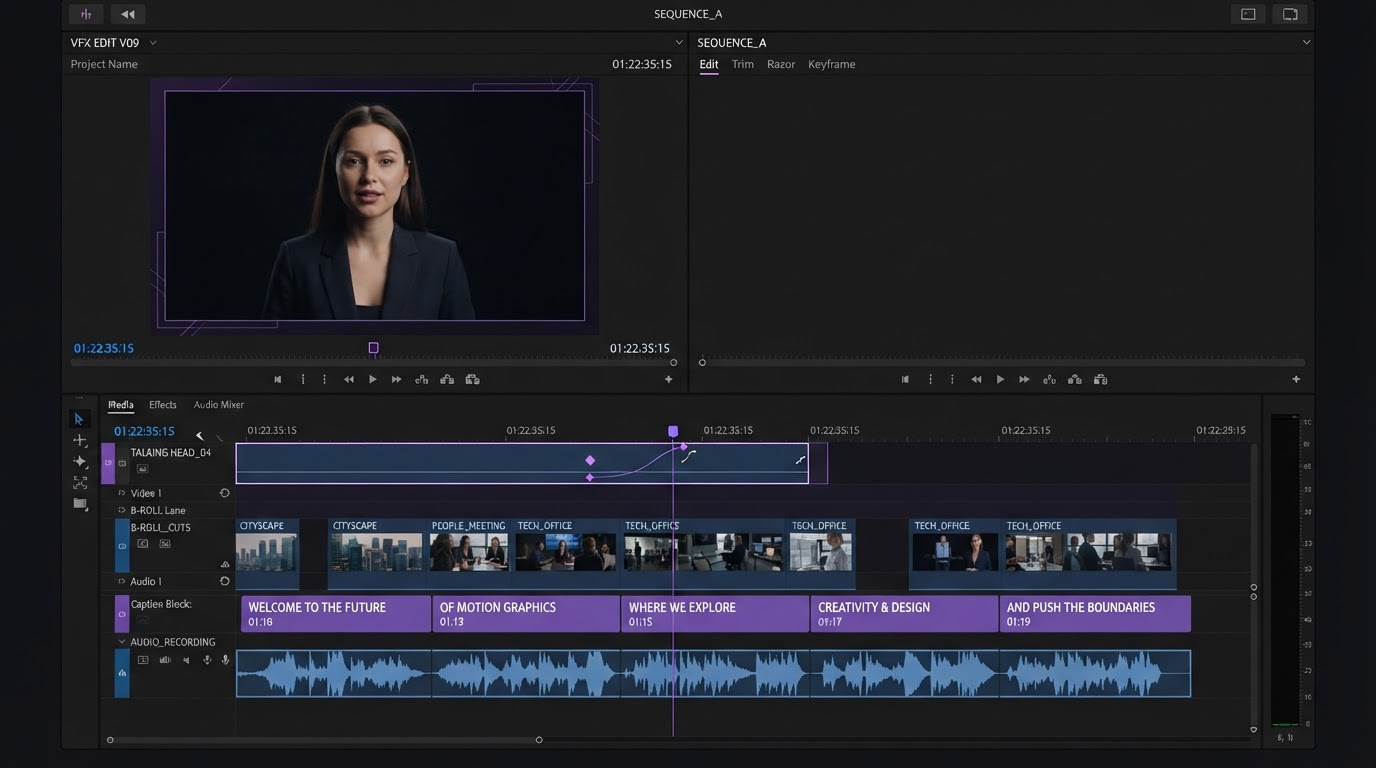
Getting the audio into your project first is the whole trick. Drop the track in, add the audio to your video timeline, and let the waveform decide the structure. If you generate first and map second, you will end up trimming beautiful footage to fit a beat it was never made for.
Step 2: generate clips that survive a cut
Free generators split into two shapes, and the one you pick changes how consistent your video looks.
Single prompt tools take a track or a text description and hand back a finished video. Firefly, Vidnoz, HeyGen and the various free music video generators sit here. They are fast and they are fine for a lyric visual, but you get little control over what appears in shot four versus shot twelve. Canvas and workflow tools sit at the other end, where you chain a reference image into several video calls so the same subject carries across shots, and a step by step walkthrough of that approach lives in Wireflow's guide to building free AI music videos if you want the generation side spelled out before you edit.
Whichever you use, prompt for the cut, not for the poster. Practical rules that hold up:
- Write one prompt per section, then vary it slightly per shot. Same subject, same wardrobe, same time of day, same lens language. Change the action and the framing only.
- Ask for three to six seconds. Longer clips eat credits and you will cut them down anyway.
- Specify camera motion explicitly (slow push in, handheld drift, static lock off). Mixed motion across shots is what makes a montage feel stitched together.
- Generate a spare for every hero moment. Free tiers fail, and a re run tomorrow costs you a day.
- Keep the near misses in a folder. A clip that is wrong for the chorus is often right for a two beat flash cut.
Expect a hit rate around one in three on free models. Budget generations accordingly.
Step 3: cut to the beat, not to the clip
This is the step that separates a music video from a slideshow.
Lay your beat markers down first, then drop clips against them. On a fast section, cut every one or two bars. On a verse, let a shot breathe for four or eight. The pattern matters more than the individual shot: viewers feel a cut that lands with the snare and feel a cut that misses it, even if they cannot say why.
A few working habits:
- Trim on the frame before the transient, not on it. A cut that lands a frame early reads as tight. A frame late reads as sloppy.
- Vary cut length with energy. If every shot is the same duration the video flattens out by the second chorus.
- Use speed as an edit tool. Pushing a clip to 150 percent to make it land on the beat is normal practice, and it is faster than regenerating. You can speed up a clip and retime it in place.
- Repeat shots on purpose. Bringing back the chorus visual the second time it plays makes the video feel composed rather than random.
- Split long generations into two or three usable pieces and scatter them, so a single clip does not read as one long take.
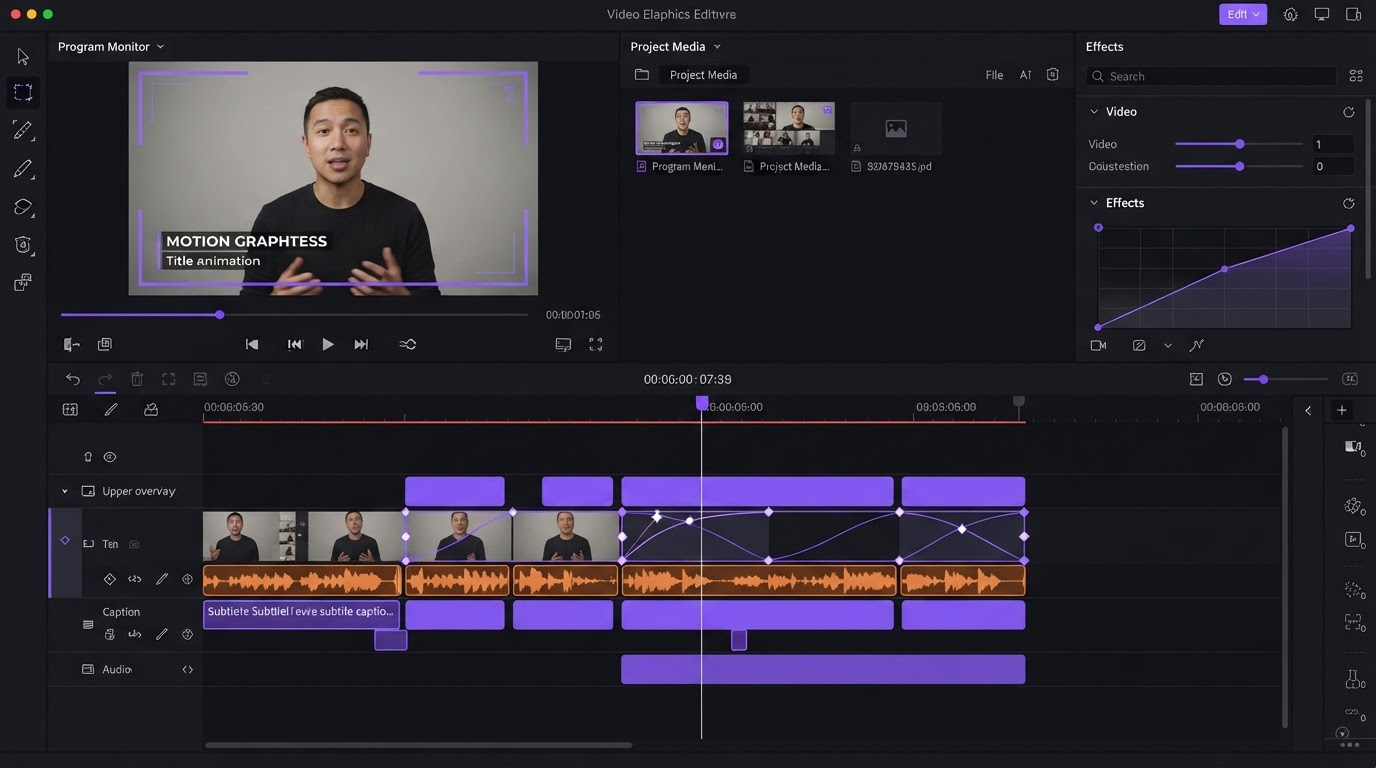
Keyframes are worth the extra minute here. A slow scale from 100 to 106 percent across a held shot, or a small position drift, keeps a static generated clip alive during a long vocal line.
Step 4: put something on top of the footage
Generated footage alone rarely holds attention for three minutes. The layers above it do.
Lyrics are the highest value addition, especially for an unknown track. Word by word or line by line both work; line by line is easier to time and easier to read on a phone. If you want the treatment done for you, the music video with lyrics template gives you a timed text layer you can restyle to the song.
An audio reactive layer covers instrumental sections. Bars, waveforms, or a circular spectrum tied to the track give the eye something moving when there is no lyric to show. Browse the music visualizer templates and pick one that matches the genre rather than the one that looks most technical.
Titles and credits belong at the top and tail. Artist name and track title in the first five seconds, credits in the last ten, both inside the safe area so a vertical crop does not cut them in half. Grade last: one consistent color pass over the whole timeline hides a lot of inconsistency between clips from different generations.
Step 5: export once, crop three times
Render a 16:9 master first. That is your YouTube version and your archive.
Then re frame. Vertical crops are not automatic: a centered subject in 16:9 often sits off center in 9:16, and text laid out for wide will overflow. Re position the subject per section rather than applying one crop to the whole timeline, and bump lyric text up 20 to 30 percent so it reads at phone size.
Three deliverables cover almost everything: 16:9 for YouTube, 9:16 for Shorts, Reels, and TikTok, and a 30 to 60 second 9:16 cut built from the chorus for promotion. That short cut is the one that actually travels, so build it from your strongest eight shots rather than the first minute of the video.
Frequently asked questions
Can I really make a full music video for free?
Yes, with tradeoffs. Free tiers cap clip length, daily generations, and resolution, and most add a watermark. A three minute video means spreading generations over a few days or accepting 720p. The editing and timeline work is free either way.
How many clips does a three minute music video need?
Between 30 and 60 for a normal cut, more if the track is fast. That sounds like a lot until you count repeats: reusing chorus visuals and splitting longer generations into pieces cuts the number of unique clips you need roughly in half.
Why do my AI clips look inconsistent between shots?
Because each generation starts fresh. Fix it by reusing an anchor image or the same descriptive phrases across every prompt in a section, keeping wardrobe and lighting language identical, and finishing with a single color grade across the whole timeline.
Do I need copyright free music?
If you are publishing to YouTube or TikTok with someone else's track, expect a claim. Your own music, licensed music, or AI generated music avoids it. Claims usually redirect revenue rather than remove the video, but check before you promote it.
What if I only have a still image and a song?
Then build a visualizer instead of a montage. A single strong image plus an audio reactive layer and lyric text is a legitimate format, and it is what most independent releases actually ship. Start from a music visualizer rather than trying to fake motion footage.
Where to start
Pick one 30 second section of your track. Map its beats, generate six clips, cut them to the markers, and add a lyric layer. If that 30 seconds holds up on your phone with the sound on, the method works and you can scale it to the full song. If it does not, the problem is almost always the cut timing, not the footage. Fix that first.
Founder of Motionbox and Gluely. Building tools for creators.