Best AI Tools for Social Media Video Creation in 2026, Sorted by Production Job
Social video is a production job, not a generation job. This guide sorts the 2026 AI video field by the stage it fixes, from sourcing shots to captions and platform export specs.
Most roundups of AI video tools stop at the part that is easy to demo. A prompt goes in, a clip comes out. Then you open the file and find a 16:9 export with burned-in captions at the wrong size, no way to nudge a title by four frames, and no project to reopen next week. Social video is a production job, not a generation job, and the tools worth your time in 2026 are the ones that hand back something you can still edit.
This guide sorts the current field by the job each tool does in a social pipeline: sourcing footage, cutting it, captioning it, sizing it for the platform, and shipping it on a schedule. That order matters more than any ranking, because the tool that fixes your bottleneck is the only one that changes your output.
In short
- Name your bottleneck first: sourcing footage, cutting it, captioning it, or shipping it. Buying a tool for a bottleneck you do not have wastes a month.
- Use generation tools for shots you cannot film, not for whole videos. A five second product turnaround is where they pay off.
- Do the cut and the captions on a real timeline, so you keep layers, tracks, and keyframes instead of a baked MP4.
- Size and export per platform at the end, not the start. 9:16 for TikTok, Reels, and Shorts, 1:1 for feed, 16:9 for YouTube.
- Save the finished cut as a reusable template. Episode two should be a swap, not a rebuild.
Quick answer:
- For repurposing long footage into shorts, clip finders like OpusClip and Descript do the selection work, but expect to re-time and restyle every caption they hand you.
- For shots you cannot film, text to video and avatar tools (Runway, Kling, Veo, HeyGen, Synthesia) are best used for single inserts of three to eight seconds, not full edits.
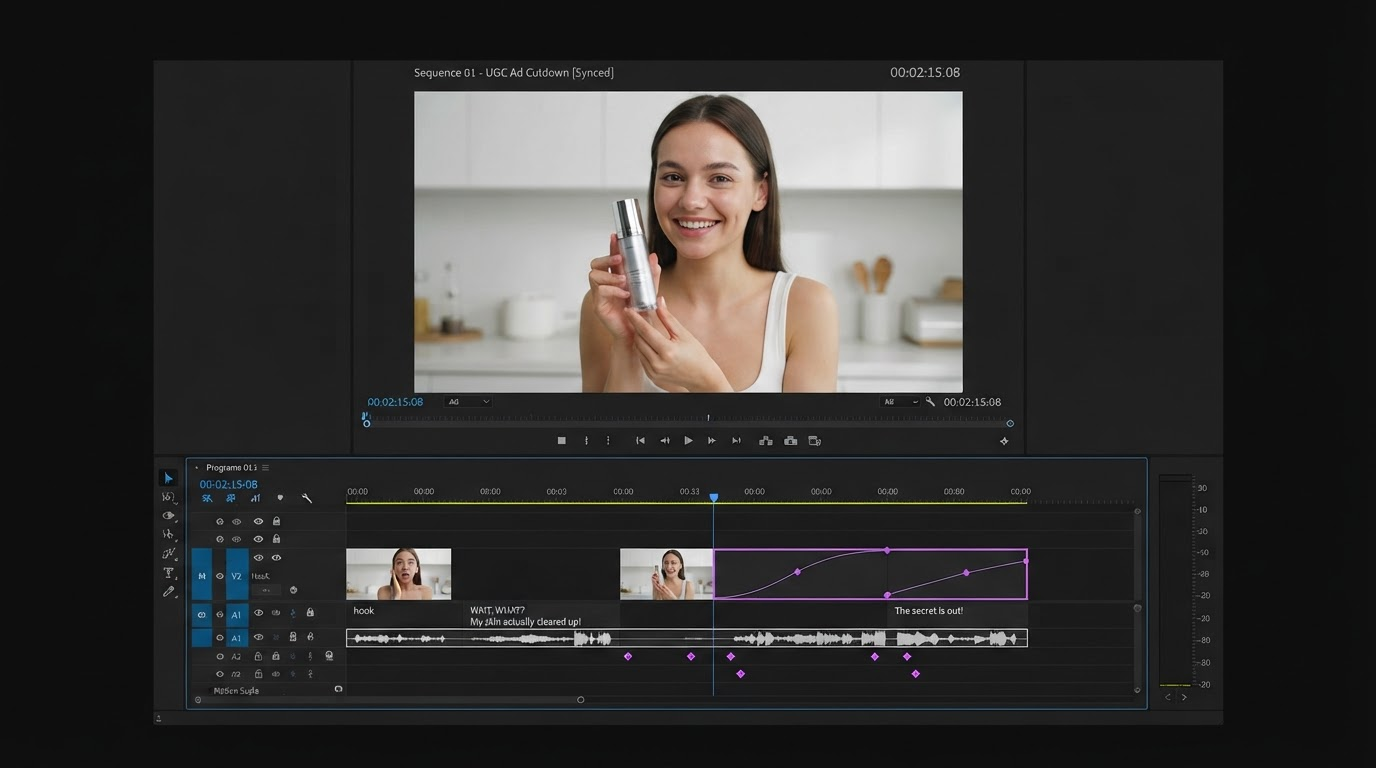
- For the actual assembly, captioning, and platform sizing, you want an editor with a timeline, tracks, and keyframes, because that is the only stage where a small fix stays a small fix.
The five jobs in a social video pipeline
Every social video, whether it is a UGC ad, a talking head short, or a product loop, moves through five stages. Sourcing, selection, assembly, captioning, and delivery. Most AI tools are strong at one of them and quietly bad at the rest, which is why stacking two good tools beats hunting for one that does everything.
Sourcing is where you get raw material: filmed footage, screen recordings, stock, or generated shots. Selection is picking the moments worth keeping. Assembly is the cut itself, including titles, logos, transitions, and pacing. Captioning is the layer that carries most social video watch time. Delivery is aspect ratios, safe areas, file size, and the schedule you post on.
Write those five down and mark which one is eating your week. A team that films plenty and edits slowly needs a faster assembly stage, not a video generator. A team with a strong editor and nothing to edit needs sourcing.
Sourcing: generation tools earn their place on single shots
Text to video models improved sharply through 2025 and 2026, and the honest read is that they are now good at short, self contained shots. A bottle rotating on a plinth. A drone push over a coastline. An abstract loop behind a lyric. What they are still not good at is a two minute narrative with a consistent character, consistent lighting, and dialogue that lands on beat.
So use them the way a professional uses stock: as an insert. Generate a three to eight second shot, bring it into your timeline, and cut it against footage you filmed. Avatar tools like HeyGen and Synthesia follow the same rule. They are excellent for a scripted explainer in five languages and a poor fit for anything needing real personality.
We ran a batch of vertical inserts for a client's Reels test and used Wireflow to generate platform sized social clips from a text prompt or a still image, which meant the shots arrived already framed at 9:16 instead of needing a reframe pass in the edit. That saved roughly a minute per shot on twelve shots, which is small on one video and not small across a month of daily posting.
The tradeoff to watch is credit cost. Generated shots are priced per second and per resolution, so a habit of regenerating rather than editing burns a monthly allowance fast. Set a rule: two generations per shot, then solve it in the edit.
Selection: clip finders are a first pass, never a final pass
OpusClip, Descript, and the clip features inside most social schedulers all do a version of the same thing. They transcribe your long video, score the segments, and hand you a set of candidate shorts with captions already burned on. On a podcast or a webinar, this genuinely works. It will find the five moments a human would have found, in about a minute.
The part these tools get wrong is the finish. Auto captions land in a default style at a default size, usually too small for a phone held at arm's length, and they sit wherever the tool decided rather than above the platform's UI overlays. Auto reframing crops to whoever is talking, which is fine until two people are on screen and the crop starts hunting.
Treat the output as an assembly, not a deliverable. Pull it into a timeline, fix the in and out points by a few frames each, restyle the captions, and check the bottom third against the platform safe area. A TikTok video editor that keeps the clip, the captions, and the titles on separate tracks is what makes that ten minute pass instead of a re-export.
Assembly and captions: this is where the time actually goes
Captions carry social video. Most feeds autoplay muted, and the caption layer is what holds someone past the first second. That makes caption styling a design decision, not a checkbox, and it is the single stage where a prompt based tool costs you more than it saves.
What you want at this stage is boring and specific. Editable text objects rather than pixels burned into the frame. Per word timing you can nudge. A font size that reads at 400 pixels tall. A background plate or stroke that survives a bright shot. And a way to apply the same look to the next twelve videos without redoing it. Motionbox handles this with automatic video subtitles that stay as a real caption track, so restyling the whole video is one change rather than twelve.
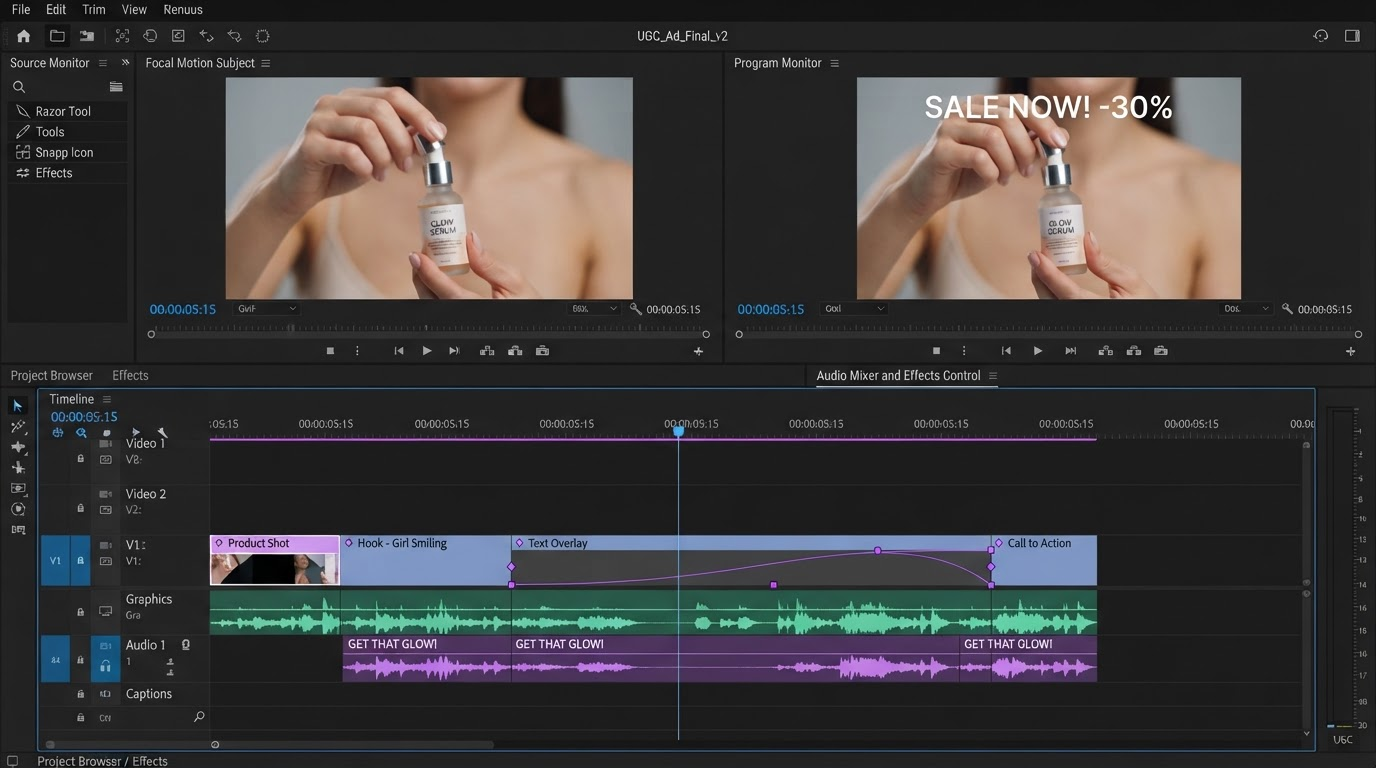
The same logic applies to titles, logo stings, and lower thirds. Keyframes and easing curves sound like motion design jargon, but the practical version is simple: an object animating on a curve you can adjust looks intentional, and an object that pops in on a preset looks like every other post that week. If your source is a recording, running it through a video to text pass first gives you a script to cut against before you touch the visuals.
Delivery: sizes, safe areas, and the part everyone skips
Platform specs in 2026 are stable enough to memorize. Vertical is 1080 by 1920 at 9:16 for TikTok, Reels, and Shorts. Square is 1080 by 1080 for feed posts. Landscape is 1920 by 1080 for YouTube. Frame rate is 30 for talking head content and 60 when there is fast motion, and H.264 in an MP4 container is still the safe export everywhere.
The detail that trips people is safe area rather than resolution. Each vertical platform covers the frame with its own UI: captions, handles, buttons, and a progress bar. Keep meaningful content out of the bottom 15 percent and the top 10 percent, and check it on a phone rather than a desktop preview.
Finish by making the edit reusable. Save the cut as a template with the caption style, intro, and end card already placed, then swap the footage for the next post. Starting from a social video template rather than an empty timeline is the difference between posting three times a week and posting once.
A workable stack for most teams
Small team filming their own footage: shoot on a phone, cut and caption in a browser based timeline, export vertical, and use a generated insert only when a shot is impossible to film.
Content team repurposing long form: run a clip finder over the source, take the top five candidates, then fix timing and captions in a real editor before publishing. Budget for both, because the clip finder without the editor ships sloppy work.
Agency running UGC ads: vary the hook, keep one locked body and end card as a template, and change only the first three seconds per variant. A caption template library is what keeps twenty variants looking like one campaign.
Frequently asked questions
What is the best AI tool for social media video creation in 2026?
There is no single best, because the tools are strong at different stages. If your bottleneck is finding moments in long footage, a clip finder like OpusClip or Descript is the answer. If it is producing shots you cannot film, a text to video model is. If it is the cut, the captions, and the sizing, you need a real timeline editor, and that stage is where most social teams lose their hours.
Can AI make a full social video from a single prompt?
It can produce something watchable, and for a simple product loop or an abstract background that may be enough. For anything with a hook, a message, and a call to action, one prompt gives you raw material rather than a finished post.
Do AI captions need editing?
Almost always. Accuracy drops on names, product terms, and accents, so read every line. Style matters more than accuracy for retention, and default presets are usually too small and sit too low for vertical feeds. Budget two to three minutes per short for a caption pass.
What export settings should I use for TikTok, Reels, and Shorts?
1080 by 1920, 9:16, H.264 MP4, 30fps for talking head content and 60fps when there is fast motion. Keep the file under about 250MB so uploads do not re-compress harder than they need to, and keep key content out of the bottom 15 percent of the frame where the platform UI sits.
The short version
The tools are good now. The workflow is what separates a channel that posts daily from one that posts when it can. Pick one tool for your real bottleneck, do the assembly and captions on a timeline you control, size for the platform at the end, and turn the finished cut into a template. Then the next video is an afternoon rather than a project.
Founder of Motionbox and Gluely. Building tools for creators.