How to Turn Photos Into Cartoon Avatars With AI (5 Tools Ranked for Animation)
A cartoon avatar rarely stays a profile picture. Here is how to turn a photo into one with AI, and which tools give you a character that still works once it has to move.
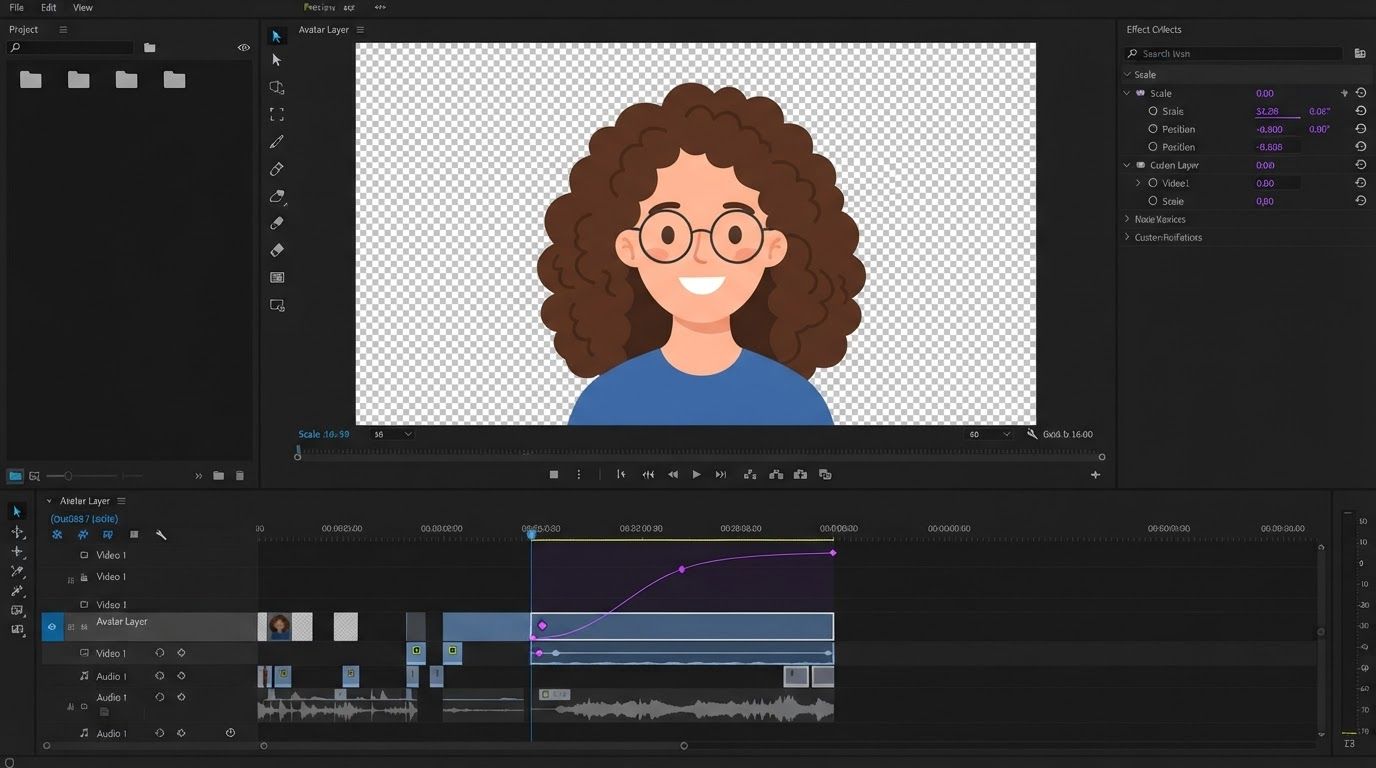
Most people who search for a photo to cartoon tool want a new profile picture. Creators usually want more than that. The avatar becomes a channel intro, a reaction GIF, a stream overlay, a sticker pack, or the narrator of an explainer. That means the cartoon has to survive a timeline: scaling, keyframes, compression, and a transparent background behind captions.
This guide covers the full route, from picking the right source photo to looping the finished character. It ranks five AI tools on one question: how well does the avatar hold up once it has to move?
The list at a glance
- Wireflow: best for avatars that need to move, because the same canvas renders the still and animates it.
- Cutout.pro: best for trying many styles fast, from 3D cartoon to pixel art.
- Fotor: best for flat caricature and vector looks that stay readable at small sizes.
- Canva: best for teams that want the avatar, a background remover, and their brand kit in one editor.
- Picsart: best for a quick, free filter pass that keeps close to the original photo.
Quick answer:
- Start from a front facing, evenly lit photo at least 1024 pixels on the short side, shoulders up, on a plain background, then generate 4 to 6 variations in one style before you pick.
- Export the winner as a PNG with a transparent background at roughly twice the size of its largest placement, so a keyframed zoom on a 1080 x 1080 loop never goes soft.
- Animate with small moves: a 2 to 4 second loop, a 6 percent scale bounce on an ease out curve, and a blink that lasts 2 or 3 frames, exported as MP4 for social and GIF for chat.
What your source photo needs
AI cartoon tools are generous with bad input, but motion work is not. Every flaw in the source photo turns into a flaw that repeats every loop. Before you upload anything, check five things:
- Face angle: front facing or a slight three quarter turn, with both eyes visible and no sunglasses.
- Light: soft and even. Hard shadows across the face become strange cartoon shapes.
- Resolution: 1024 pixels or more on the short side. Small photos give the model less to work with around the eyes and mouth.
- Background: plain and uncluttered, so the cutout edge stays clean.
- Crop: shoulders up, with the head filling about half the frame and some headroom. Circle crops on YouTube, Discord, and Twitch eat the corners.
If your only good photo is a group shot, crop to one face and upscale it before you upload. A face that is 300 pixels wide inside a larger picture gives the model very little to work with, and the cartoon eyes and mouth come back mushy.
How this list is ranked
Each tool was judged on four production questions, in this order of weight:
- Can it take your actual photo as the input, not just a text prompt?
- Does the output work as a video layer: decent resolution, clean edges, and an easy route to a transparent background?
- Can you get more than one pose or expression of the same character for swaps and blinks?
- Can it produce motion itself, or do you have to leave the tool to animate?
Free credits and style count matter, but they come after these. A tool with 50 styles and a flat 512 pixel export will still fall apart on a timeline.
The five tools, ranked
1. Wireflow
Wireflow treats a cartoon avatar as a small workflow on a node canvas instead of a single button. A text description and an optional reference photo go into an image node running GPT Image 2.5 Flare, which paints the avatar. That still then flows into a Gemini Omni Flash 1.1 node, which turns it into a short clip where the character can wave or talk. Building the graph is free, and credits are spent only when a node renders.
The usual problem with one tap cartoon apps is that the still is the end of the road. When you want the character to move, you export the PNG, open a second tool, and hope the face survives the trip. Wireflow's cartoon avatar maker solves that by keeping the render and the animation on one canvas: wire your photo into the image node, rerun the render until the face lands, then send the same still straight into the video node without re-uploading anything.
Be clear about the limits. The photo steers a guided restyle, not a pixel exact likeness, and the animated clip is short. You still bring the clip into an editor for captions, timing, and loop points.
Verdict: best for avatars that need to move without a second app in the middle.
2. Cutout.pro
Cutout.pro offers dozens of tuned cartoon models, including 3D cartoon, Japanese anime, American comic, K-pop, pixel art, and hand drawn sketch. You upload a JPG or PNG, pick a style, and generate. The page lists 5 credits per generation, and results come back as square images sized for avatars and stickers.
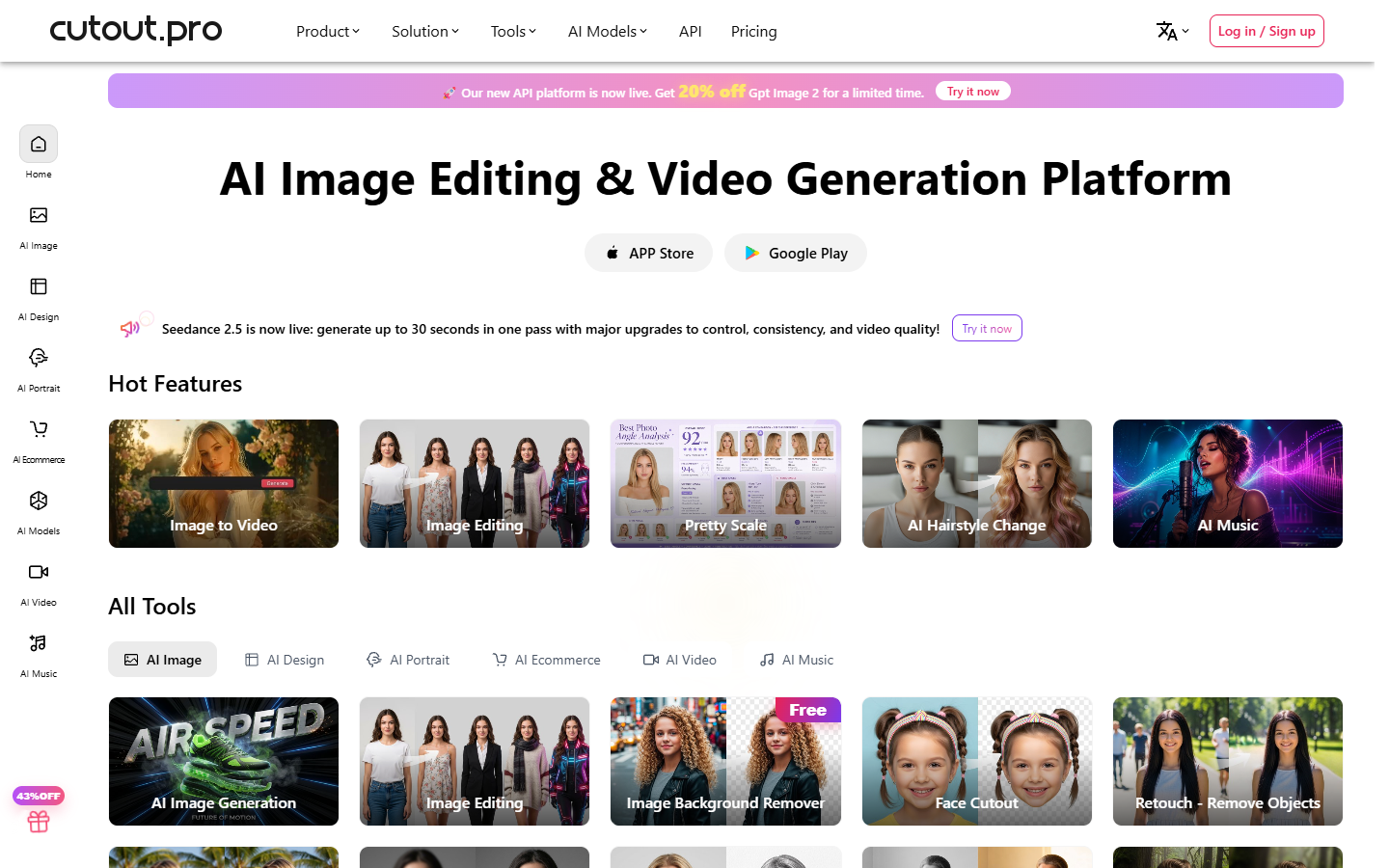
The square output is a good fit for profile loops and chat stickers, and background removal is the company's core product, so a transparent cutout is one step away. If you pick the pixel art style, animate it with hold keyframes instead of smooth easing. Stepped motion looks right on pixels, and you can drop the result into animated sticker templates without the edges smearing.
Verdict: best for exploring many styles before you commit to one.
3. Fotor
Fotor lists over 50 cartoon styles, from 3D cartoon and caricature to kawaii anime, toy brick, and vector illustration. The flow is upload, choose a style, generate, then download a high resolution result. Free use runs on daily credits from its reward center.
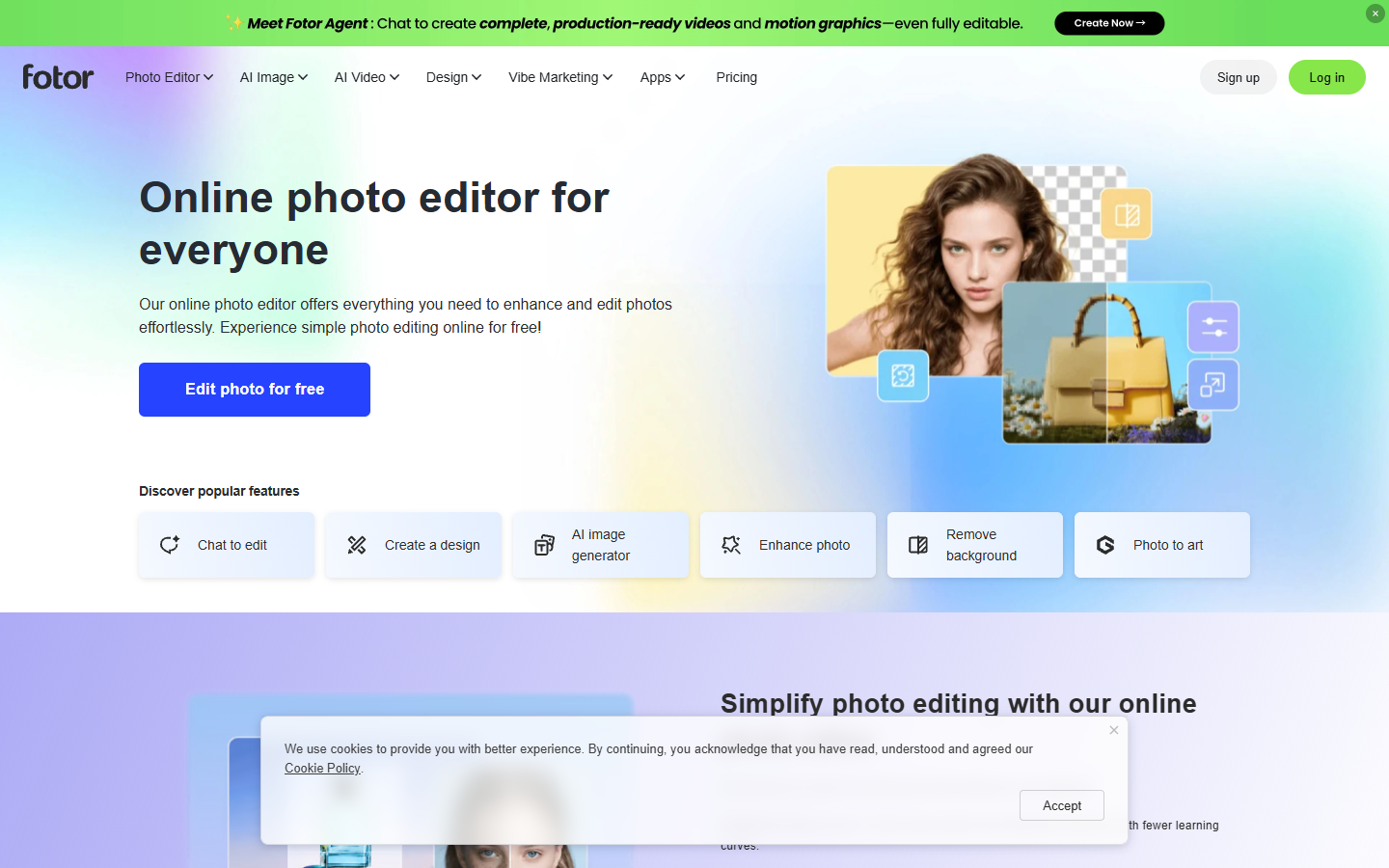
The styles worth a motion editor's attention are caricature and vector illustration. Flat color and hard outlines survive heavy compression, which is exactly what happens when a character becomes a reaction loop in a GIF editor and gets squeezed under a chat app's file limit.
Verdict: best for flat looks that stay readable at thumbnail size.
4. Canva
Canva's AI Cartoon Generator turns an uploaded photo into a cartoon, and you can describe changes in plain words, such as a softer sketch or bolder colors, then regenerate. The result opens in the regular Canva editor, where Background Remover and Magic Eraser sit next to your brand kit. Canva says generated cartoons carry no watermark.
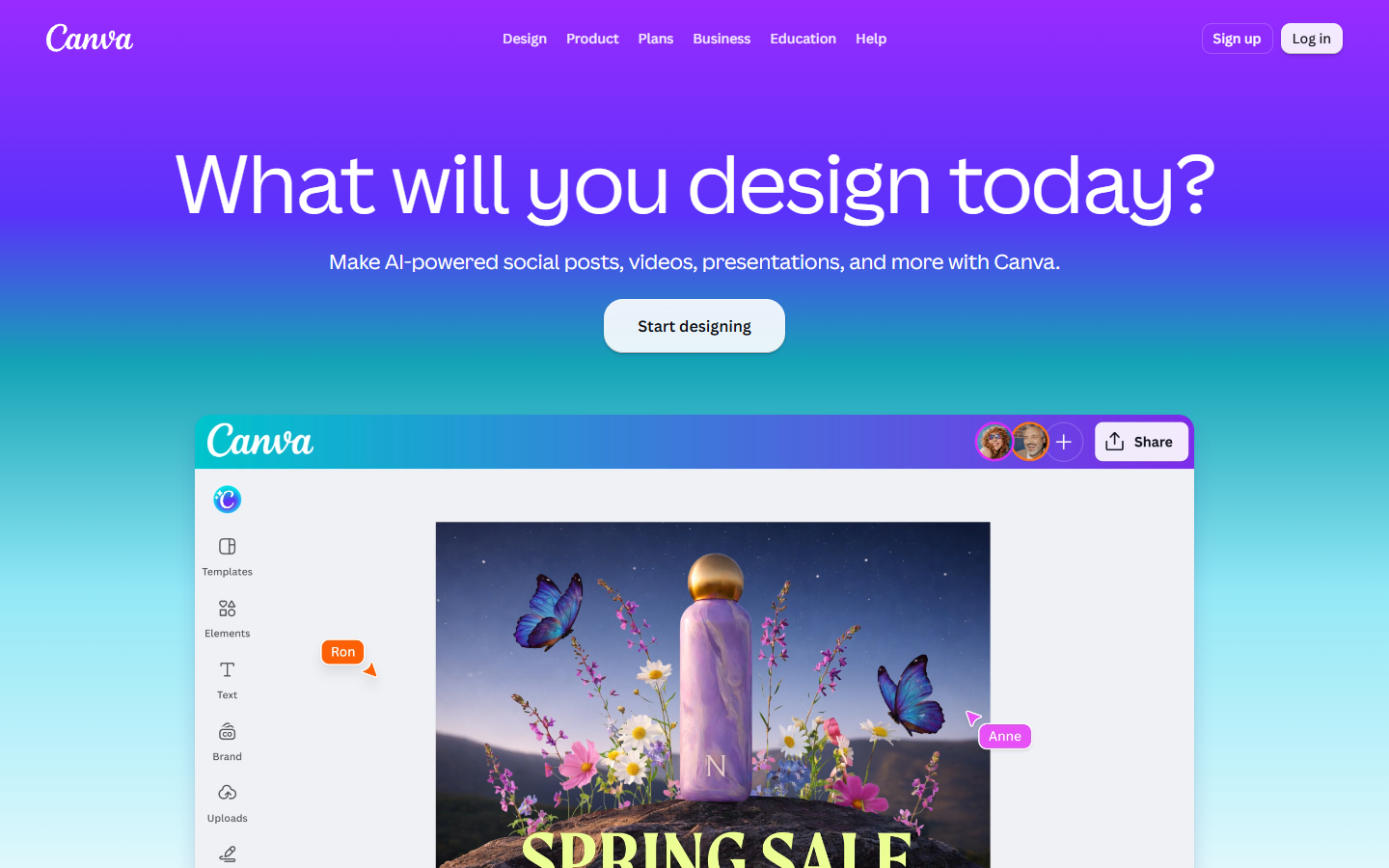
The cartoon page does not mention animating the result, so plan to export a still. If Background Remover leaves a halo around hair, regenerate the cartoon on a plain, flat backdrop and key it out later with a chroma key pass on the video layer.
Verdict: best for brand teams that already live in Canva.
5. Picsart
Picsart applies cartoon effects such as pop art, watercolor, and sketch to an uploaded photo, then lets you customize and download. Its FAQ says the cartoon filters are free, with paid plans listed at $11.66 and $34.83 a month for extra features and generations.
Because these are filters, the result stays close to the original photo. Likeness is strong and stylization is light. The tradeoff is that a filter can only restyle a photo you already have, so a set of expressions means shooting a set of photos.
Verdict: best for a fast profile swap that still looks like you.
Turning the still into motion
A cartoon avatar reads as alive with surprisingly little movement. Big moves look cheap on a face. Small, well eased moves look intentional. A typical loop for a profile picture or avatar video needs only four ingredients.
- Set the loop length. Use 2 to 4 seconds, with the first and last keyframes identical so the loop never jumps.
- Add a scale bounce. Go from 100 to 106 percent with an ease out curve, then back with an ease in. Center the anchor point on the chin, not the middle of the frame, so the head grows up and out.
- Add a blink. Generate a closed eye variant in the same style, then swap to it for 2 or 3 frames at 30 fps. One blink per loop is plenty.
- Export for the placement. MP4 for Reels, Shorts, and TikTok. GIF for Slack and Discord. A transparent format for stream overlays.
Agents can set these keyframes for you while you art-direct the timing. The point is an editable timeline, not a baked file.
Keeping one character consistent across a series
A single avatar is easy. Twelve episodes of the same avatar is where most creators struggle, because generative styles drift between runs. A few habits keep the character stable:
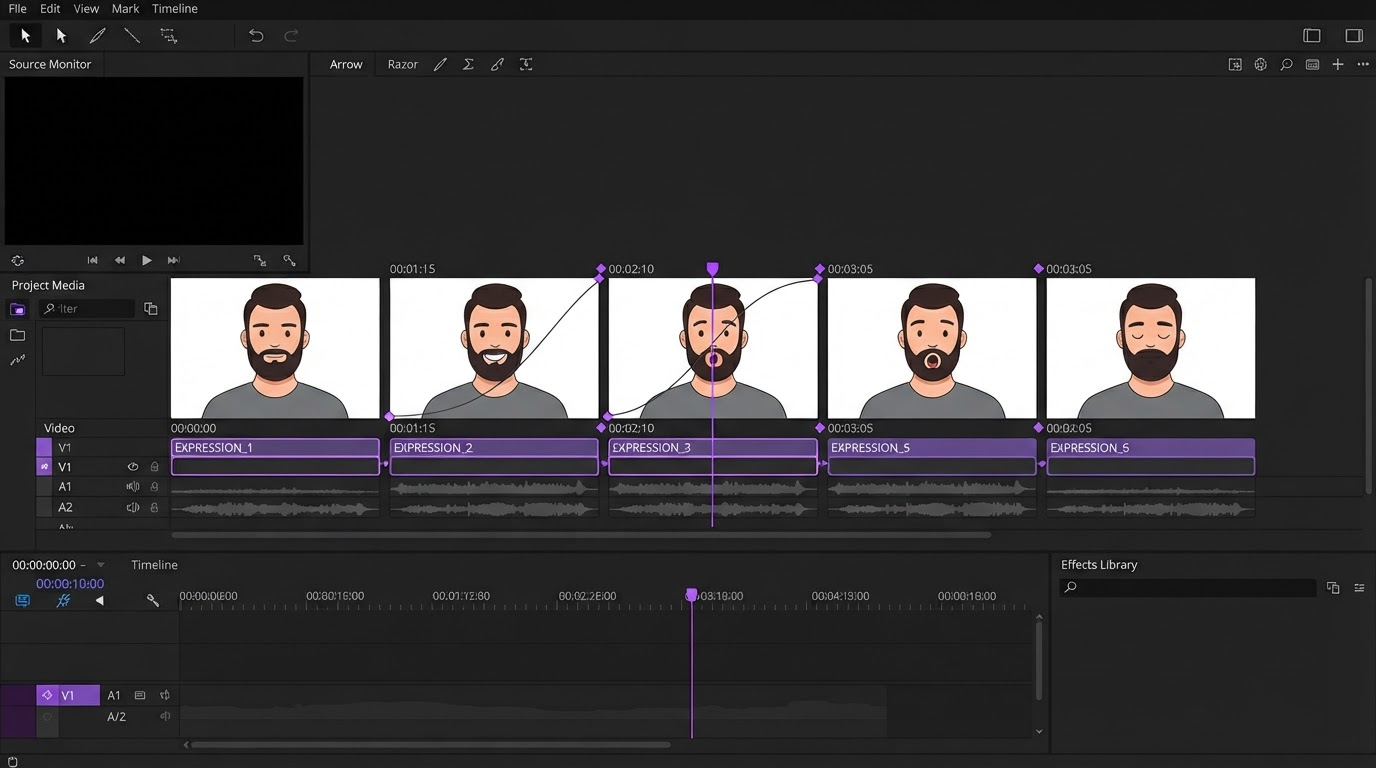
- Save the recipe. Write down the exact style name, prompt, and source photo, and reuse all three every time.
- Generate the expression set in one session. Neutral, smile, surprised, mouth open, mouth closed, and eyes closed cover most talking and reaction loops.
- Lock the crop and eye line. If every expression shares the same framing, swaps on the timeline will not jump.
Once the set exists, the same character can open every video through a branded intro, react in GIFs, and sit in the corner of a stream without looking like a different person each time.
Frequently asked questions
Can I turn a photo into a cartoon avatar for free?
Yes, within limits. Fotor gives daily credits, Picsart says its cartoon filters are free, and Cutout.pro charges credits per generation. Motionbox's free tier renders with a watermark, so plan for that before a client delivery.
Will the cartoon still look like me?
Filter style tools keep the strongest likeness. Generative styles restyle the face and can drift, so generate several variations and pick the one that reads as you at small sizes.
How do I animate a cartoon avatar?
Import the transparent PNG, set a 2 to 4 second loop, add a small scale bounce with easing, and swap in a closed eye frame for a blink. Tools that animate the still directly can give you a short clip to trim and loop.
Can I cartoon someone else's photo?
Only with their permission. For commercial work, avoid styles that copy a named studio or franchise, and use your own or licensed source photos.
Where to go next
The photo to cartoon step takes minutes. What makes an avatar useful is the next part: a transparent export, an expression set, and a short loop with honest easing. Pick the tool that matches how much your character needs to move, then build that loop in Motionbox and reuse it in every video.
Founder of Motionbox and Gluely. Building tools for creators.