How to Turn Text Into Video With AI in 2026
Text to video works in 2026, but a model gives you clips, not a video. Here is the full path from the sentence you type to the file you upload, including the timeline decisions that decide whether it lands.
Text to video finally works in 2026, but it does not work the way the demo reels suggest. A model gives you a clip. A clip is not a video. The gap between "I typed a sentence and got six seconds of footage" and "I published something people watched to the end" is filled with timeline work: trimming, sequencing, captions, pacing, brand type, and a render that matches the platform you are posting to. This guide walks the whole path, from the sentence you type to the file you upload, with the editing decisions that actually decide whether it lands.
In short
- Write a shot list first, not a paragraph. One sentence per shot, each with subject, motion, and camera.
- Generate in short beats. Ask for 5 to 8 second clips and lock characters with a reference frame so scenes match.
- Bring every clip onto a timeline and cut to the audio, not to the clip lengths the model handed you.
- Add captions, brand type, and one motion accent per scene. This is where generated footage starts looking authored.
- Render per platform. Vertical for short form, 16:9 for YouTube, and check the first frame before you export.
Quick answer:
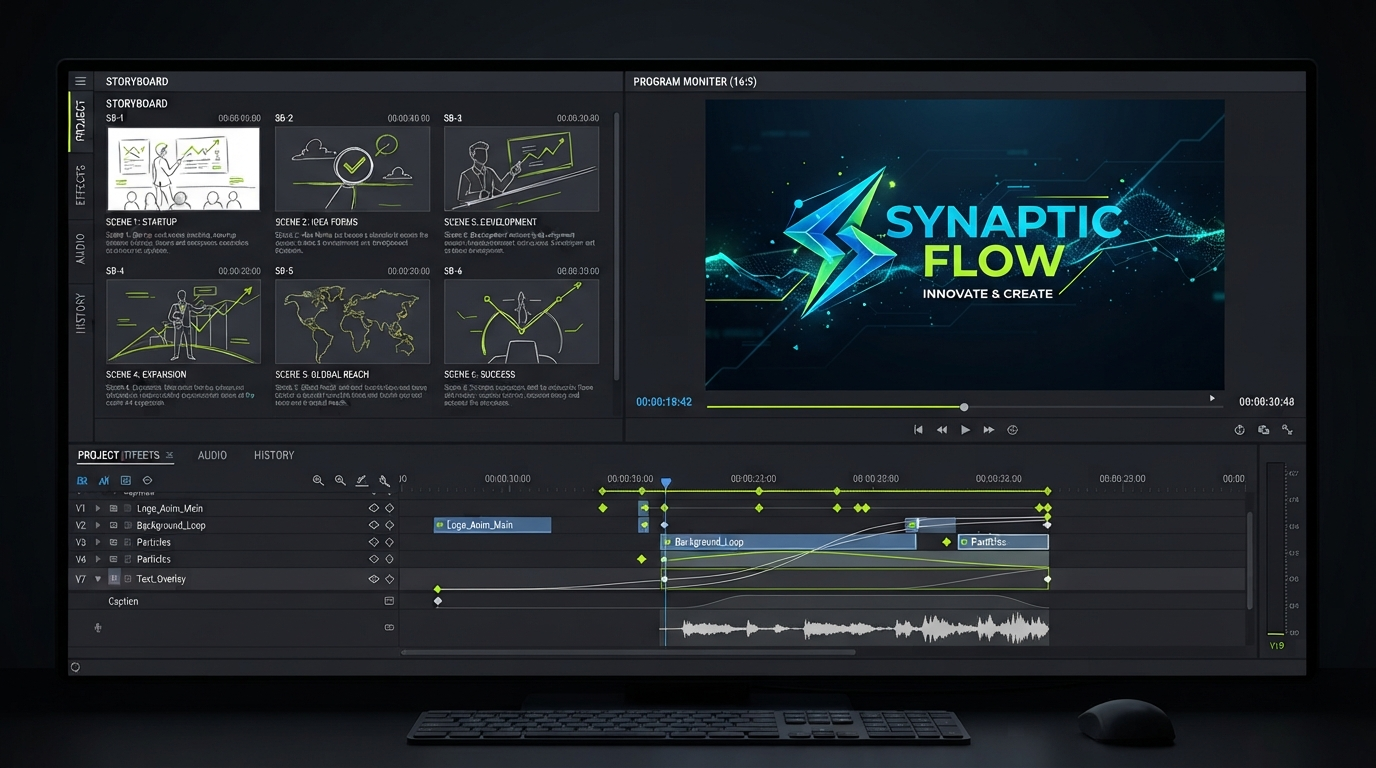
- Turning text into video with AI is a two stage job in 2026. Stage one is generation, where a model turns prompts into short clips with native audio. Stage two is assembly, where you cut, caption, and brand those clips on a timeline.
- Generation is the fast part and the part everyone shows. Assembly is where most projects die, because raw model output arrives as disconnected 5 to 10 second files with no captions, no pacing, and no brand.
- The workflow that ships: shot list, generate short beats with a locked reference frame, edit on a timeline, caption, then render one master per aspect ratio.
Stage one: write a shot list, not a prompt
The single biggest quality jump in text to video has nothing to do with the model. It comes from writing a shot list before you write a prompt. Most people type a paragraph describing a whole video and get back six seconds of averaged mush, because the model tried to compress a 40 second idea into one shot.
Break the script into beats. A 30 second video is roughly five or six shots. Write one line per shot and put three things in every line: the subject, what the subject is doing, and what the camera is doing. "A ceramic mug on a wet windowsill, steam rising, slow push in" is a shot. "A cozy morning routine video" is a mood board.
Keep the beats consistent in style language. If shot one says "shot on 35mm, shallow depth of field, overcast light," every other shot repeats those exact words. Models do not remember what you asked for in the previous generation, so continuity comes from you repeating yourself, not from the model being clever. If you want a broader tour of what current generators can and cannot do before committing, the AI video generation guide for 2026 covers model behavior in more detail.
Stage two: generate in short beats and lock the look
Ask for short clips. Five to eight seconds per generation is the sweet spot in 2026, because that is where motion stays coherent and hands, faces, and text on props stop drifting. Longer single generations look impressive in a demo and fall apart the moment you scrub them frame by frame.
Lock the look with a reference frame. Most current generators accept a starting image, and character locking through a reference frame is the practical way to keep the same person, product, or set across five shots. Generate or choose one frame you like, then feed it as the anchor for the shots that need continuity. This is also why teams often build the upstream generation step somewhere they can version prompts, swap models, and fan out variations before anything reaches the editor.
That upstream step is worth setting up properly if you make video weekly. Chaining a script, a shot list, and a batch of generations through something like Wireflow AI's text to video workflow means you get a folder of clips with consistent settings instead of thirty browser tabs and a naming scheme you invented at midnight.
Generate more than you need. Plan on a two to three times overshoot, because roughly one clip in three will have a flaw you only notice at full size: a warped hand, a sign with invented letters, motion that reverses halfway through. Overshooting is cheaper than re-prompting after you have already built the edit around a clip.
Stage three: cut to the audio, not to the clips
Here is where generated video becomes an actual video. Drop every clip onto a timeline, lay your voiceover or music underneath, and cut to the audio. The model handed you clips of arbitrary length. Those lengths mean nothing. A beat that needs 1.4 seconds gets 1.4 seconds, and the rest goes in the bin.
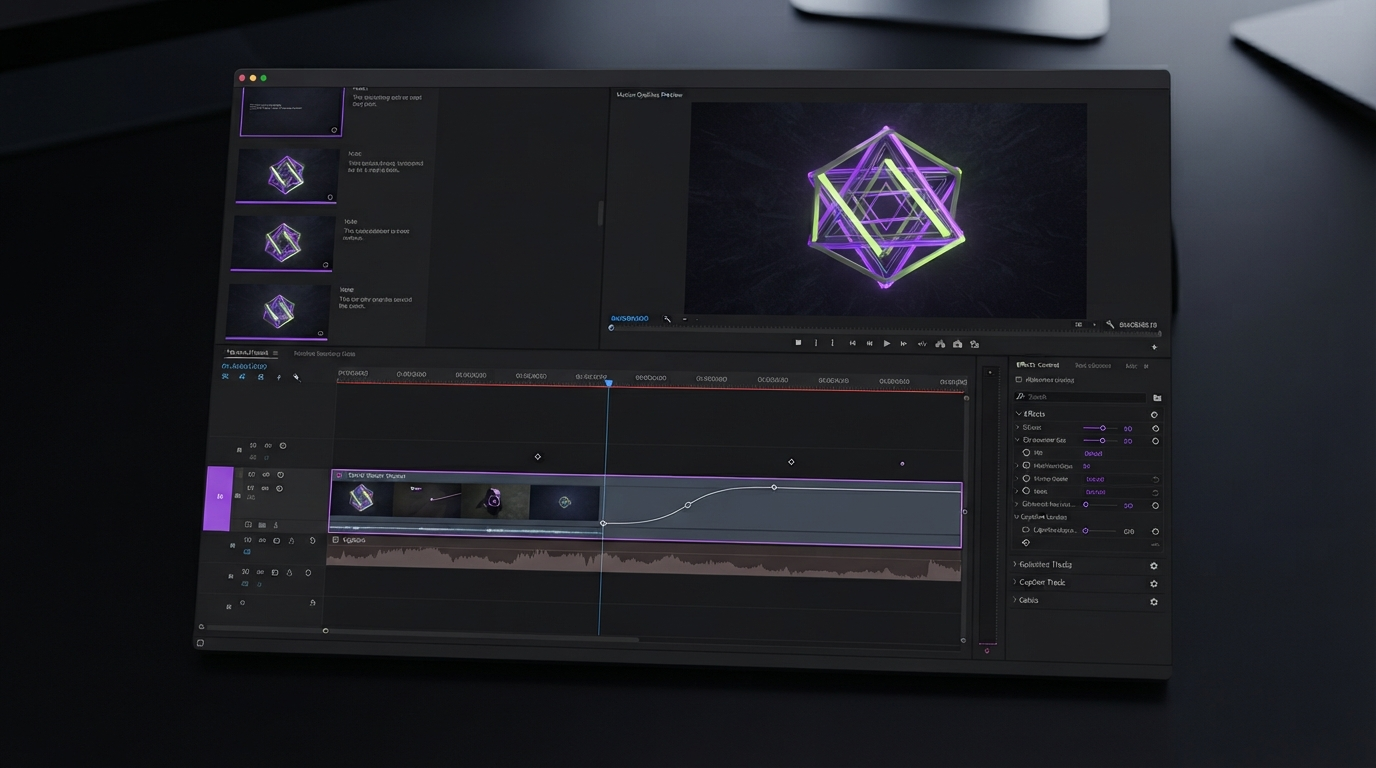
Trim from the middle of each clip, not the start. Generated footage is usually weakest in the first and last few frames, where motion is ramping in or the model is resolving the final state. Take the stable center and let the cut do the work.
Use the weak clips as texture instead of throwing them away. A generation that is not good enough to hold a full beat is often fine as a half second cutaway behind a caption or under a title. Treating spare generations as b-roll is the cheapest way to fix a sequence that feels static without going back to the model.
Vary shot length deliberately. If every cut lands on the same interval the video feels like a slideshow. Two short beats, one long one, then a short again reads as intentional pacing, which is the thing that separates edited video from a queue of clips.
Stage four: captions, type, and one motion accent
Most AI video gets watched with the sound off for the first three seconds, so captions are not an accessibility afterthought. They are the hook. Burn them in, keep them to three or four words per card, and place them where the platform interface will not cover them. Automatic video subtitles get you a first pass in a minute, and the manual work after that is timing and line breaks, not transcription.
Add exactly one motion accent per scene. A title that slides in on an ease out curve, a product name that scales up on the beat, a lower third that wipes. One accent reads as craft. Three accents in the same scene read as a template. This is also the layer that carries your brand, since generated footage has no brand in it by default.
Keep the type system consistent across the whole video. One display face, one weight for captions, two accent colors maximum. Generated clips vary in color temperature and grain, so consistent type is what glues visually mismatched shots into one piece.
Stage five: render per platform
Render a master per aspect ratio rather than cropping one export five ways. A 16:9 edit squeezed into 9:16 puts your subject's head at the top of frame and your captions under the interface. Reframe each shot for the vertical cut, which usually means pushing in and re-centering, then re-render.
Check the first frame of every export. Platform thumbnails default to frame one, and a generated clip's first frame is often the blurriest moment in the whole video. If frame one is soft, trim two frames off the head of the opening clip. For short form specifically, exporting a dedicated TikTok video cut with the subject held in the middle third avoids the crop problems entirely.
Frequently asked questions
How long can an AI generated video be in 2026?
Individual generations are practical up to about 8 to 10 seconds before motion starts drifting. Finished videos can be any length, because length comes from sequencing many short generations on a timeline, not from one long generation.
Do I still need to edit if the model generates audio?
Yes. Native audio from models like the current Veo and Kling generations gives you dialogue and ambience inside a single clip, which removes a sync problem. It does not give you pacing, captions, brand type, or the cuts between shots. Those are timeline decisions.
How do I keep the same character across multiple shots?
Use a reference frame as the anchor for every generation that needs continuity, and repeat the same style language in each prompt word for word. Expect to regenerate a few shots. Continuity is a numbers game, not a setting.
Is generated footage better than filming or using stock?
It depends on the shot. Generated footage wins for things you cannot easily film, like impossible camera moves or abstract product concepts. Filmed footage still wins for real people and real products. The comparison between video editing and AI generation breaks down where each approach pays off.
What resolution should I generate at?
Generate at the highest resolution the model offers that you can afford, then downscale on export. Upscaling generated footage after the fact adds artifacts that were not in the original, and downscaling hides small model errors that would be obvious at full size.
Where to go next
Text to video in 2026 is a supply problem solved and an assembly problem still open. The models will keep getting better at the six second clip. They will not decide how long your second beat should be, where the caption sits, or which shot earns the extra half second. Write the shot list, generate short, and spend the real time on the timeline. That is where the video gets made.
Founder of Motionbox and Gluely. Building tools for creators.