Best AI Image Editors and Photo Tools Compared: 2026 Picks for Video Work
Most photo tool roundups stop at the export button. If your still is going to land on a timeline, get scaled, keyed, or animated, the export button is the middle of the job. Here is how seven AI image editors hold up once the picture has to move.
Every AI photo editor roundup grades the same way. Is the background removal clean at 100 percent zoom. Does the generative fill match the grain. Those are fair questions for a static image, and they are the wrong first questions if you edit video for a living.
A still that ships to a timeline gets handled roughly. You push into it, so it needs pixels you never looked at. You key it over footage, so the cutout edge matters more than the subject. You render eight versions for one ad set, so the person in frame has to stay the same person across all eight. A tool can score well on every static benchmark and still fall apart the second you drop the file into a Motionbox photo to video timeline and hit play. So that is the test here: seven AI image editors, judged on what happens after the export.
The list at a glance
- Adobe Photoshop with Firefly. Best for layered comps you plan to animate.
- Topaz Photo. Best for giving a still enough resolution to survive a slow push in.
- Photoroom. Best for transparent cutouts that hold their edge over moving footage.
- Claid.AI. Best for batch product variants across a whole ad set.
- Canva. Best for fast thumbnails, end cards, and title frames.
- Luminar Neo. Best for matching a stylized still to the grade of your footage.
- Pixlr. Best free browser editor for a quick fix in the middle of an edit.
Quick answer:
- If the still gets animated, pick the tool that exports separate layers. Photoshop with Firefly is still the only one on this list that reliably hands you elements you can keyframe independently.
- If the still gets scaled or pushed into, upscale before you cut it out, not after. Topaz Photo leaves the most headroom.
- If the still sits over footage, judge the cutout on its edge, not its center. Photoroom and Claid.AI both beat the general purpose editors on hair, glass, and semi transparent pixels.
Four things a timeline does to a photo
Every failure below is a timeline problem, not a photo problem.
It scales. A 2 second push from 100 percent to 118 percent is the cheapest motion you can add to a still. It also means the top of that move shows pixels the photo editor invented. A soft upscale looks fine as a JPEG and looks like mush at the end of the push.
It composites. The moment the still goes over video, your eye stops looking at the subject and starts looking at the boundary. A 3 pixel halo that nobody notices in a product listing reads as a sticker once the background behind it moves. This is the same edge problem you fight when you key a green screen clip, except you cannot fix it with a spill suppressor.
It multiplies. One product photo becomes six aspect ratios and four hooks. If the editor drifts the subject on every regeneration, you get 24 frames that do not cut together.
It compresses. Heavy AI retouching creates smooth gradients, and smooth gradients band after H.264 encoding. The grain you removed from the still is often what would have kept the render clean.
1. Adobe Photoshop with Firefly
Photoshop stays first for one unglamorous reason. It exports layers. Generative fill, object removal, and extend all happen on their own layers, so you can hand a designer a file where the subject, the shadow, and the background are separate objects that a motion pass can move independently.
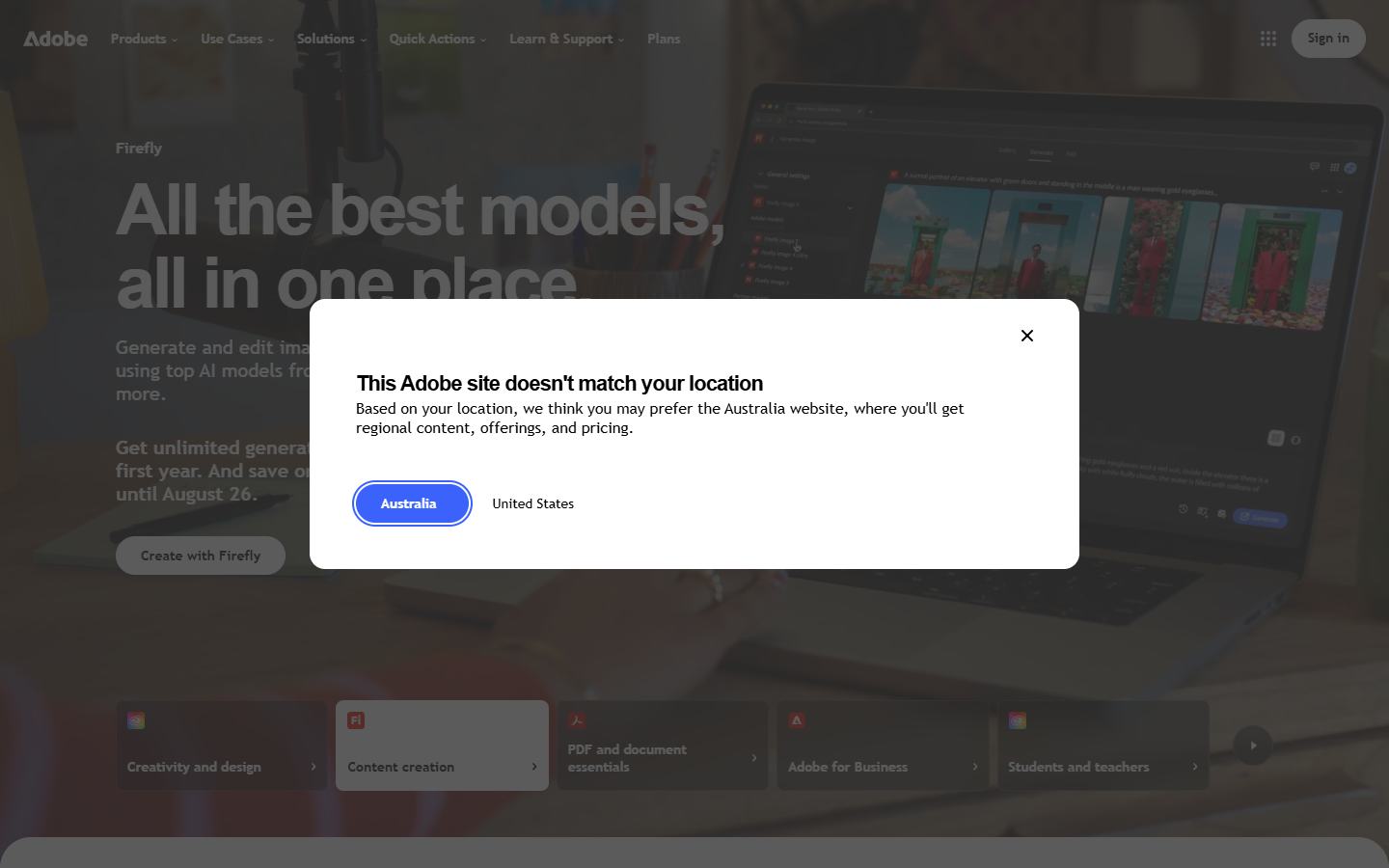
The 2026 version also stopped pretending one model wins everything. You pick per image between Adobe Firefly, Google Gemini 3, or Black Forest Labs FLUX.2 Pro, and the three fail differently. Firefly is the safe commercial default, Gemini handles instruction style edits better, FLUX holds texture at higher resolutions.
The cost is the cost. Subscription, desktop install, and the slowest tool here for a job like recut this thumbnail four ways before lunch.
2. Topaz Photo
Topaz Photo is not a creative editor and should not be judged as one. It is the step you run before a still enters an edit, and it is the difference between a push in that holds and one that goes soft at the top of the move.
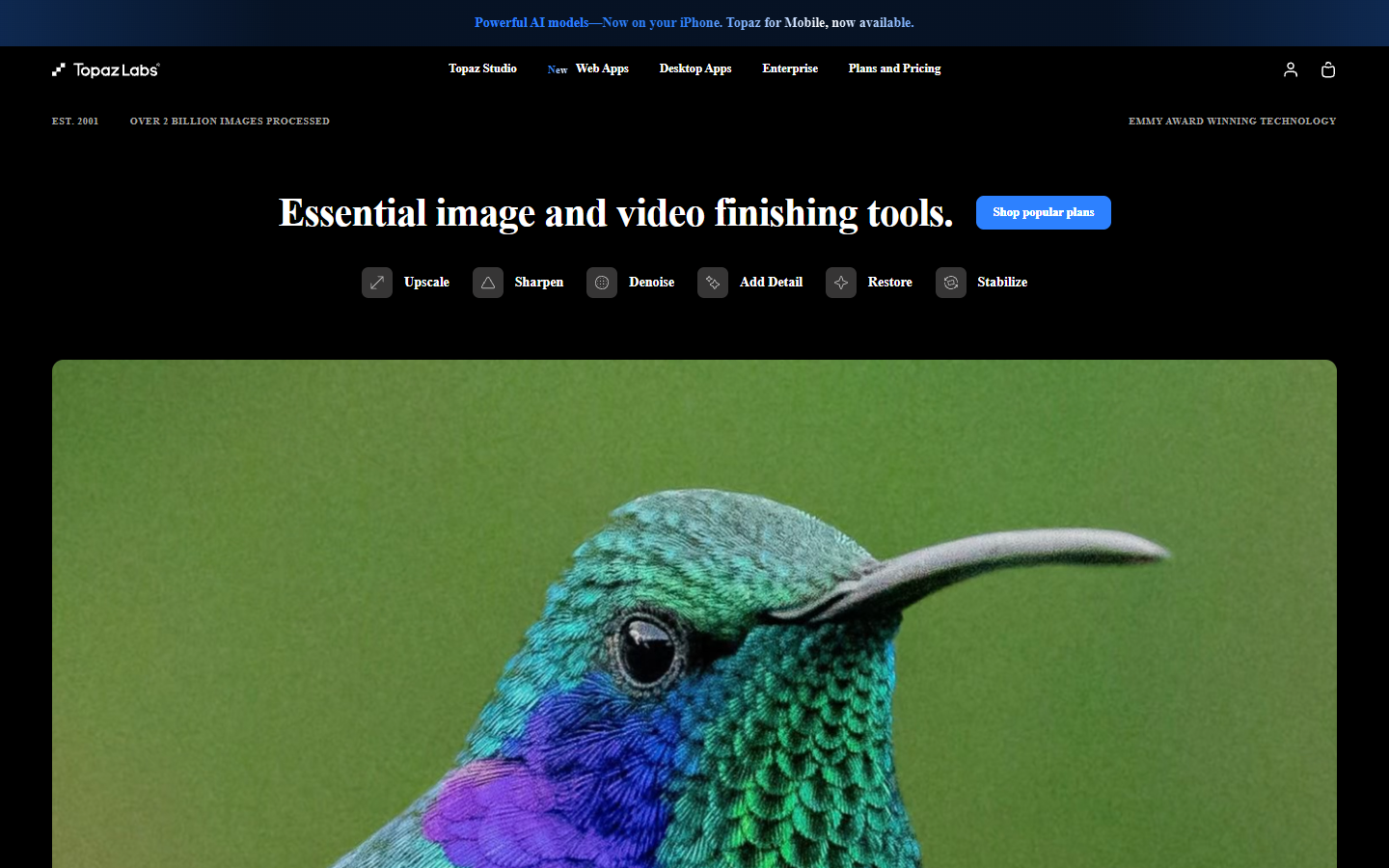
The April 2026 update added Wonder 3, a one click model that sharpens, upscales, and denoises in a single pass instead of making you stack three, plus a technique called NeuroStream that cut VRAM use by up to 95 percent. On a laptop that is the practical difference, because batch upscaling a folder of 40 stills stopped being an overnight job.
Rule of thumb: if you plan any scale move, deliver the still at 1.5 times your output resolution. A 1080p sequence wants 3000 pixels on the long edge.
3. Photoroom
Photoroom exists to separate a subject from its background, and that narrow focus is exactly why it wins for compositing. The alpha it produces has cleaner falloff on hair, fur, and glass than the cutouts you get from general editors, which is the property that survives being placed over moving footage.
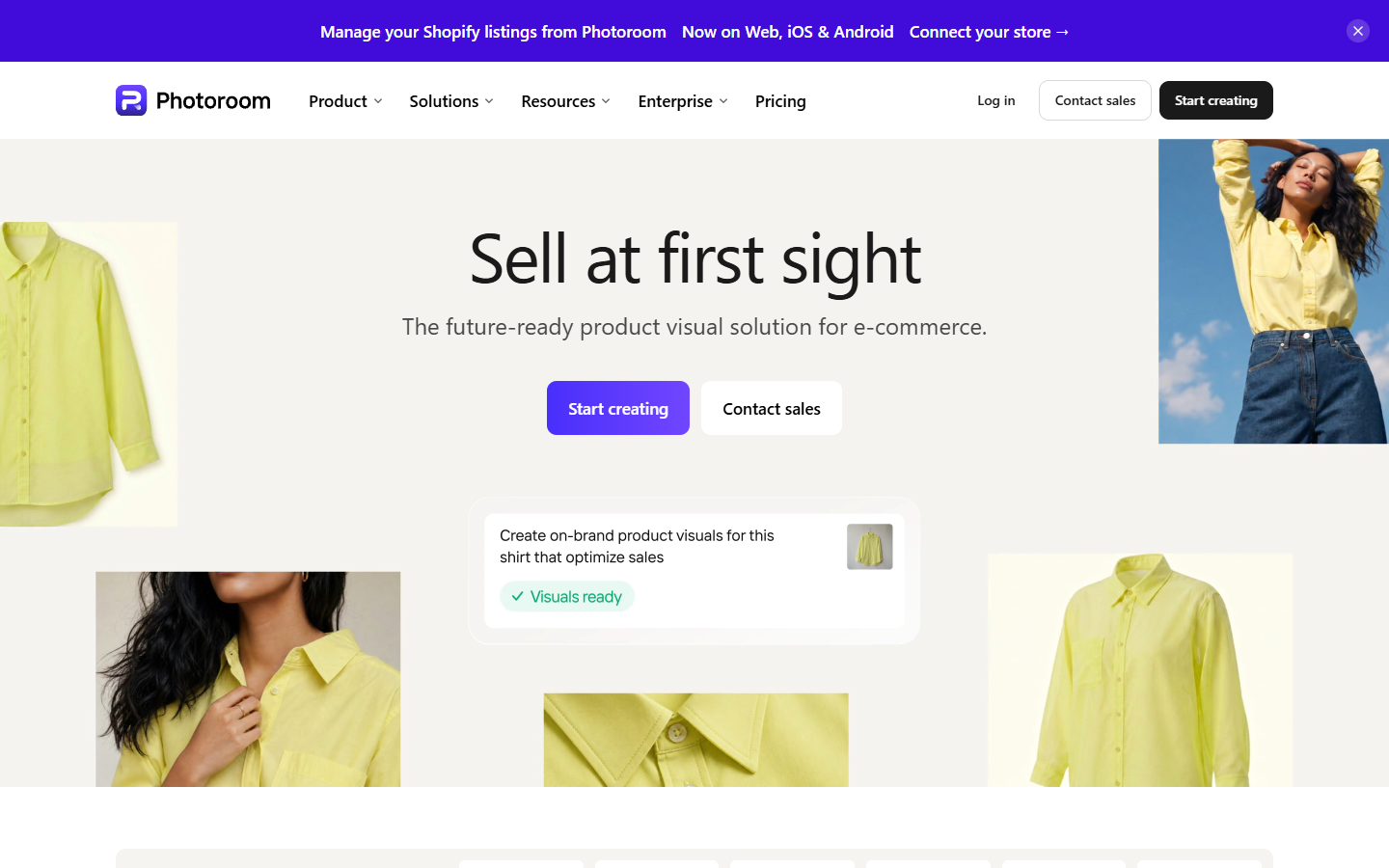
Export transparent PNG, not the flattened preview. It sounds obvious and it is the most common mistake in handoffs. A white background baked into the file cannot be recovered, and the person animating the lower third ends up redoing your work.
Where it falls short is anything past the cutout. Retouching, relighting, and text are all thin next to Photoshop, so treat it as one station, not the pipeline.
4. Claid.AI
Claid.AI is built for volume, and volume is what ad production actually looks like. It handles product photography at batch scale with a consistent output spec, which means 40 SKUs come back with the same crop, the same margin, and the same background treatment instead of 40 slightly different judgment calls.
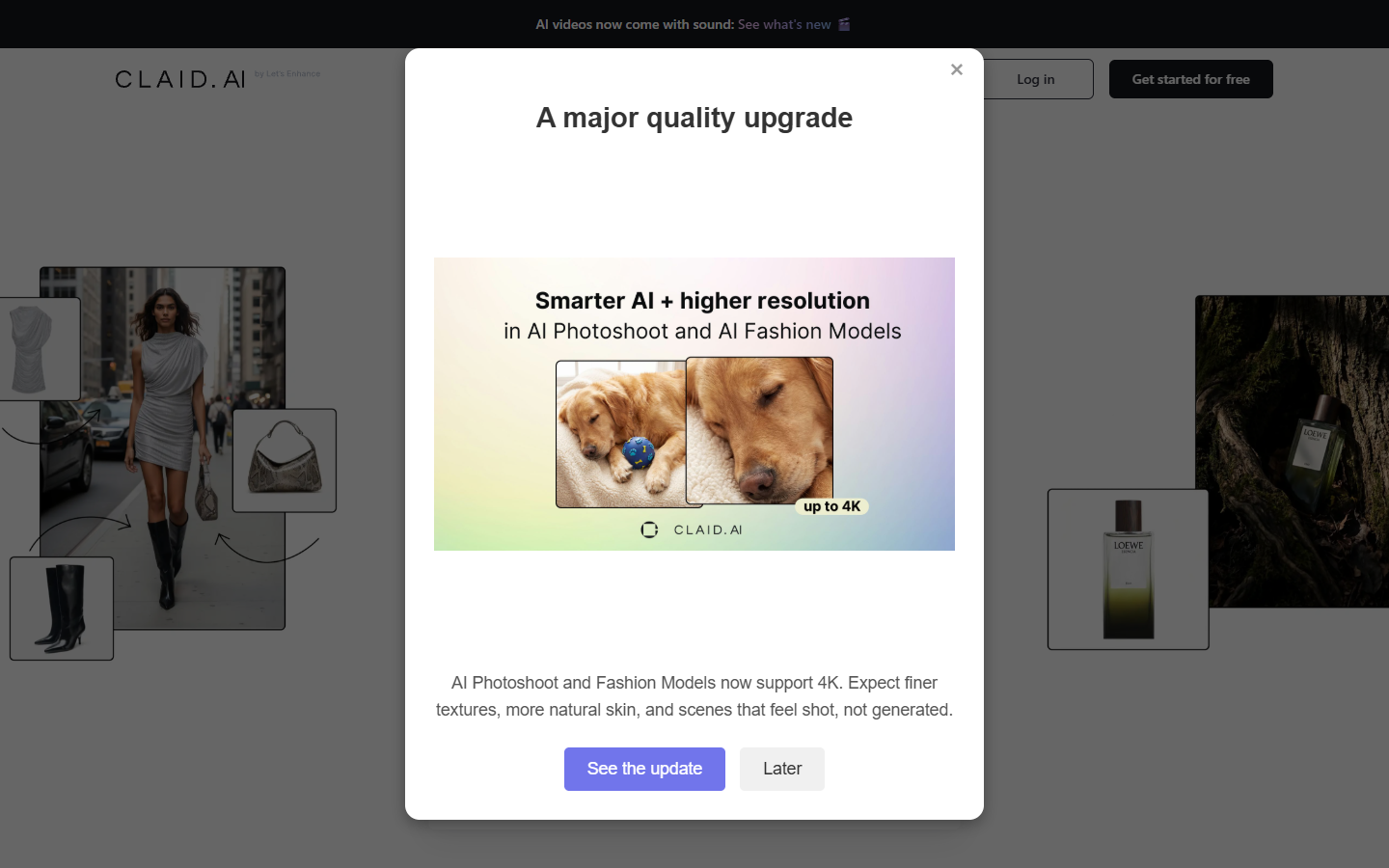
That consistency is worth more than per image quality once you are cutting a variant set. Frames that share exact subject placement can reuse one animation preset, so you build the motion once and swap the image underneath. There is an API, so this step can sit inside an automated build.
5. Canva
Canva earns its place on speed, not depth. Background remover, magic edit, and text effects are all two clicks away, the brand kit keeps colors honest, and the free tier covers a real amount of work. For thumbnails, end cards, and title frames it is usually the fastest path from idea to usable PNG.
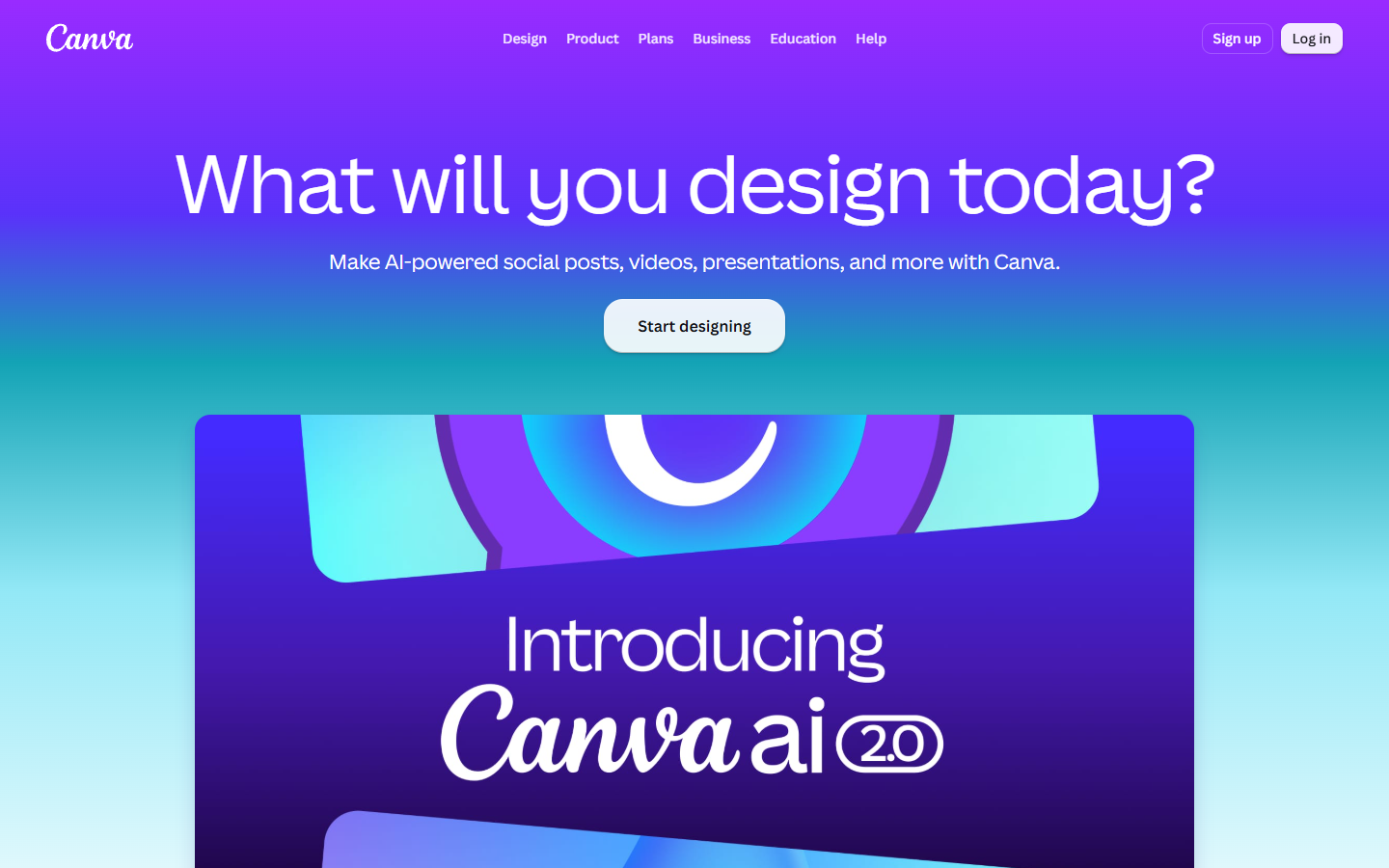
Be careful with what it hands back. Exports flatten, edges on complex subjects are softer than Photoroom's, and the AI fill runs smooth enough to band after encoding. Good first tool, bad last tool.
6. Luminar Neo
Luminar Neo is the one to reach for when a still has to match the look of your footage rather than look correct on its own. Sky replacement, relight, and the stylized presets get you to punchy and graded fast, without the Photoshop learning curve, and it sells as a roughly $119 per year license rather than a rolling subscription.
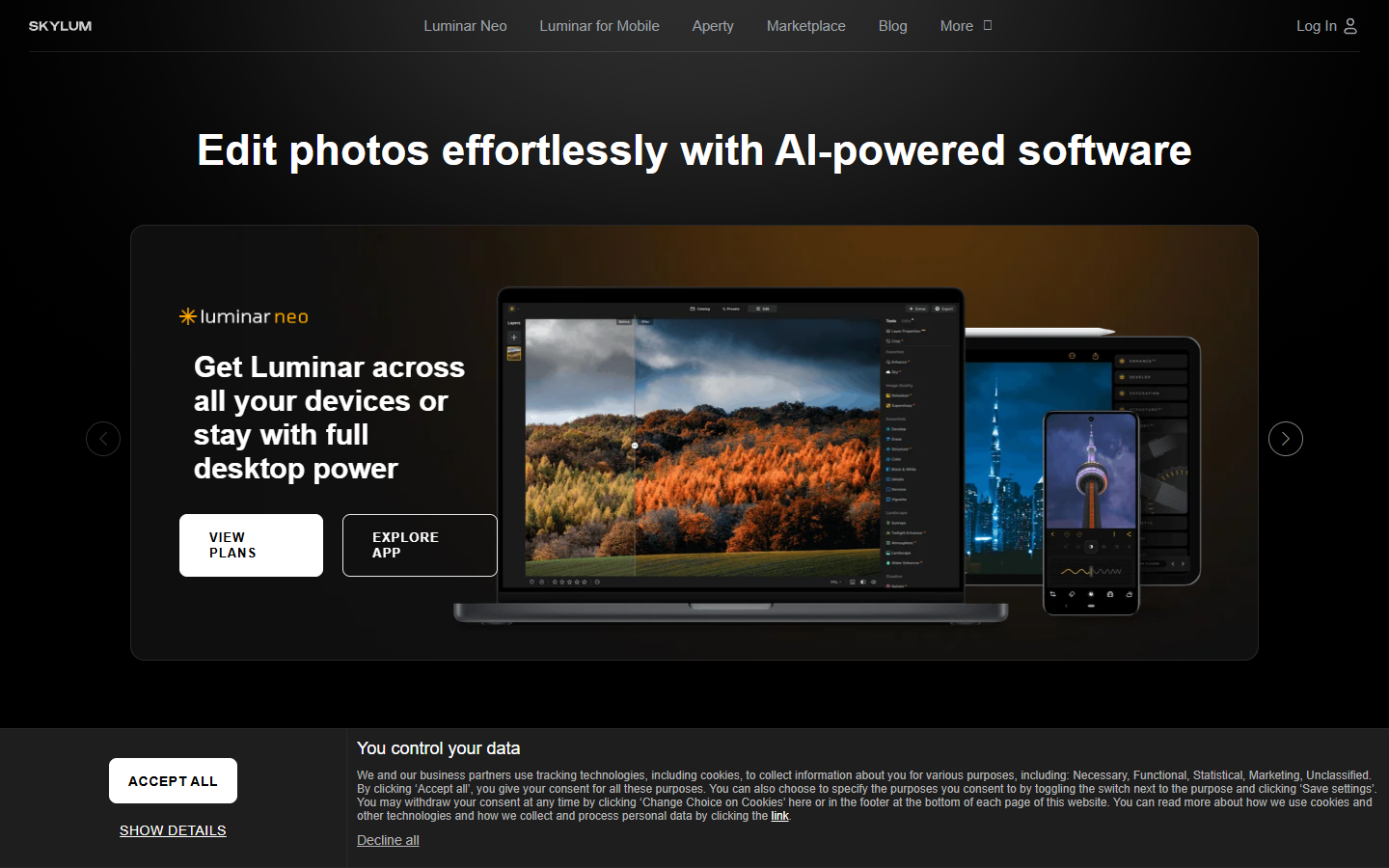
The use case is narrow but real. When a b roll still sits between two graded clips, the ungraded photo is the shot that breaks the sequence, and matching contrast and color temperature here is faster than fixing it downstream.
7. Pixlr
Pixlr is the free browser editor that belongs in a second tab while you edit. Generative fill, background removal, and basic retouching all run without an install, which is what you want when a client note lands and you need one frame fixed in 90 seconds.
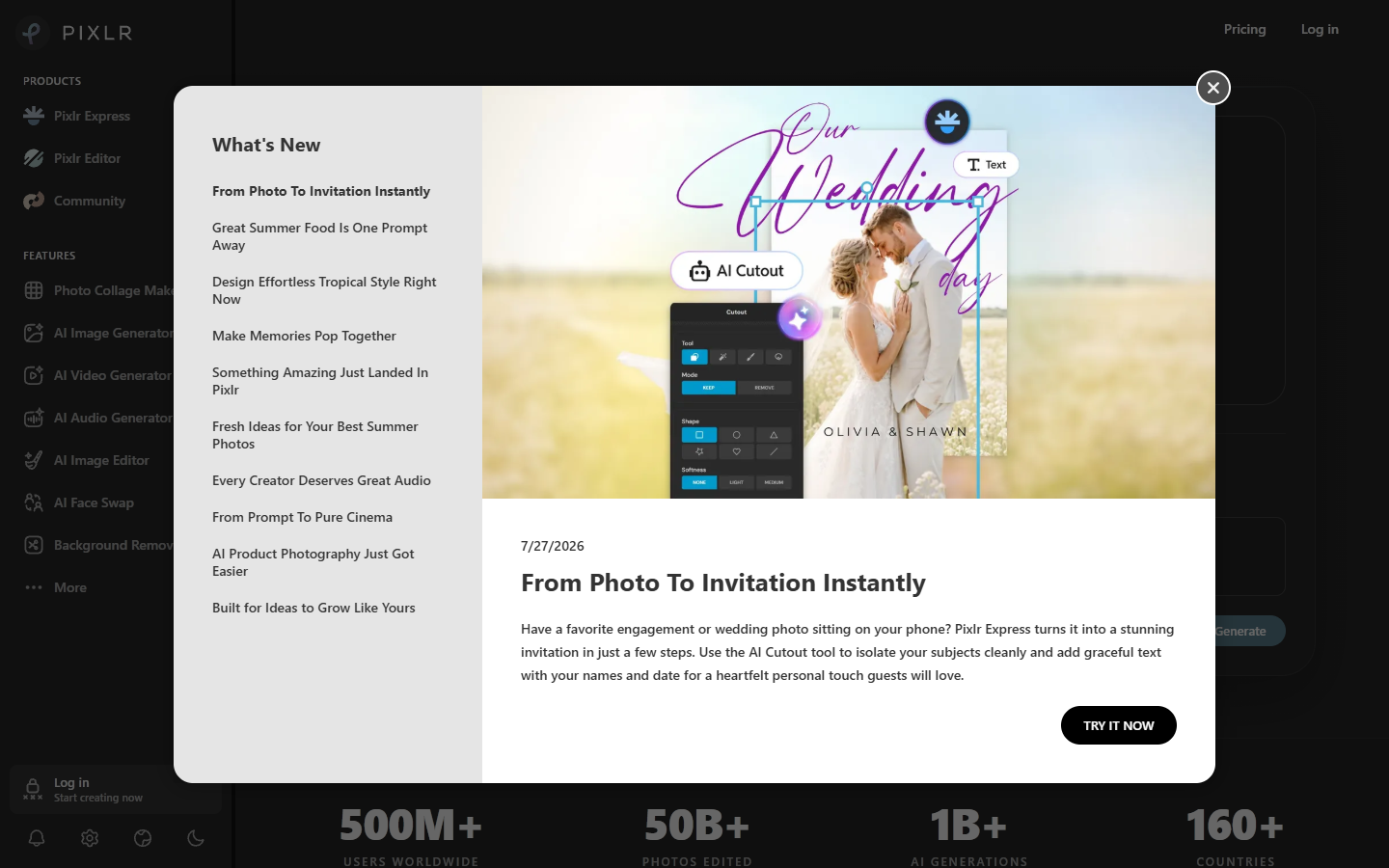
Do not build a pipeline on it. Output resolution caps lower than the paid tools and the free tier watermarks some AI features, so it patches, it does not produce.
When you do not have the photo yet
Half the time the honest answer is that no source image exists. No product shot at the angle the script needs, no character reference that matches the voiceover, no clean background plate. Editing cannot fix a photo that was never taken. Generating the asset and then editing it is a different pipeline, and it is worth wiring up properly if you ship ad variants weekly: keep the prompt and the edit as one repeatable step on the Wireflow platform so the tenth variant matches the first instead of drifting.
Handing an edited still to a timeline
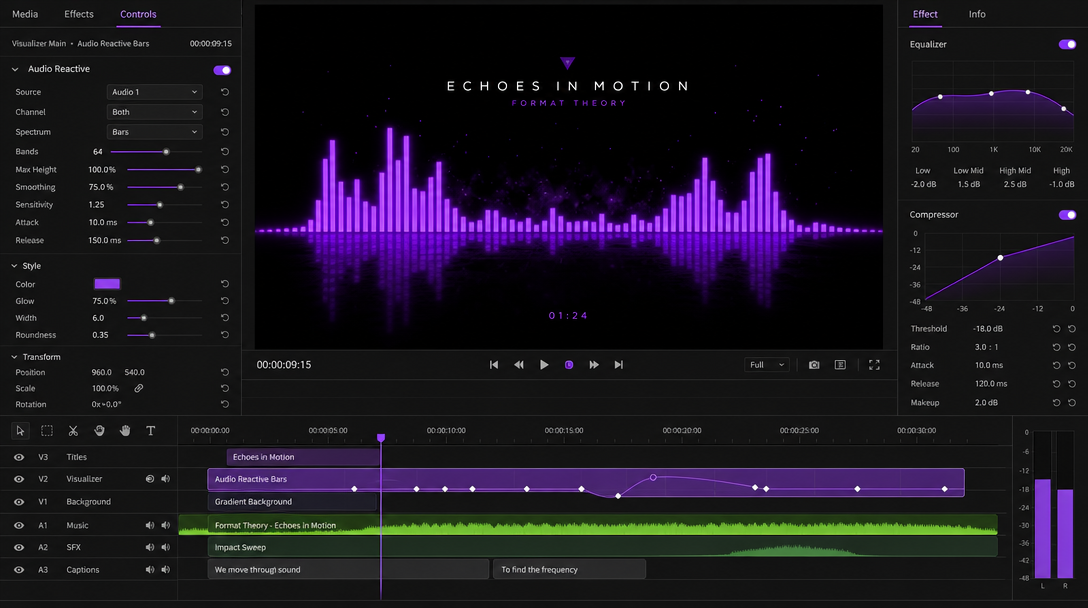
Once the still is right, the handoff rules are short. Deliver transparent PNG for anything that composites, flattened JPEG only for full frame backgrounds. Keep the layered source file, because the request to animate just the logo always arrives after the flatten. Name variants by aspect ratio and hook, not by v2 final final.
Then the motion is the easy part. A product video built from clean cutouts is mostly scale and position keyframes with an ease out, and it holds up better than a generated clip because you control every frame.
For a sequence of stills, decide pacing before you keyframe. Roughly 2 to 3 seconds each with overlapping moves reads as intentional, and it builds faster when you add each photo to the video against a set beat instead of eyeballing gaps.
Frequently asked questions
Which AI image editor is best if I only pick one?
Photoshop with Firefly, because it exports layers and layers are what motion work needs. If you never animate individual elements and mostly need cutouts, Photoroom is a cheaper and faster answer.
Should I upscale before or after removing the background?
Upscale first. Cutout algorithms make edge decisions at the resolution you give them, so a low resolution source produces a low resolution alpha edge that stays crunchy no matter how much you enlarge it afterwards.
How do I keep the same product or person consistent across a set of frames?
Do not regenerate the subject each time. Edit once, export a clean transparent cutout, then reuse that exact file across every variant and change only the background and text. Regeneration is where drift comes from.
Are free AI photo editors good enough for video work?
For patching one frame, yes. Pixlr and Canva's free tiers will get you through a client note. For anything you repeat weekly, the resolution caps and watermarks cost more time than the subscription saves.
The short version
Judge a photo tool by what your timeline does to its output, not by how the export looks at full zoom. Upscale early, cut out carefully, keep your layers, stop regenerating subjects you already got right. If your stills come from AI generators rather than a camera, our roundup of the best AI image generators covers that upstream half, and Motionbox handles the part where the picture finally moves.
Founder of Motionbox and Gluely. Building tools for creators.