Topaz Video AI Alternatives: 6 Upscalers Ranked for Editors in 2026
Topaz Labs retired perpetual licenses and moved Topaz Video to a subscription, and a lot of editors went looking for something else. Here are six alternatives that hold up, ranked by the job you are actually doing, plus the pipeline order that decides whether the upscale helps at all.
Most people do not go looking for a Topaz Video AI alternative because the output is bad. They go looking because the pricing model changed, because a two minute clip took forty minutes to process, or because the upscale happened in a separate app and every caption, lower third, and logo had to be redone afterwards. Topaz Labs dropped perpetual licenses in late 2025 and now sells Topaz Video as a subscription, with the desktop app running roughly 39 to 59 dollars a month and the Studio bundles landing at 399 to 799 dollars a year. That is a real line item for a freelancer who upscales a handful of clips a month.
This is a ranked list of six tools that actually replace it, plus the part most roundups skip: where an upscale belongs in an editing timeline, and when you should not upscale at all.
The list at a glance
- Aiarty Video Enhancer, best for cleaning up AI generated footage before you cut it.
- UniFab Video Enhancer AI, best if you want to pay once instead of monthly.
- HitPaw VikPea, best model variety, including colorization and 8K output.
- VideoProc Converter AI, best for fast batch passes on a modest GPU.
- Video2X, best free and open source option, fully local.
- DaVinci Resolve Super Scale, best when the upscale should live inside the edit itself.
Quick answer:
- If you upscale AI generated clips from Runway, Kling, or Seedance, Aiarty and HitPaw VikPea handle the soft synthetic detail better than a generic sharpen pass.
- If the subscription is the problem, UniFab and VideoProc still sell one time licenses, and Video2X costs nothing if you have an NVIDIA GPU and patience.
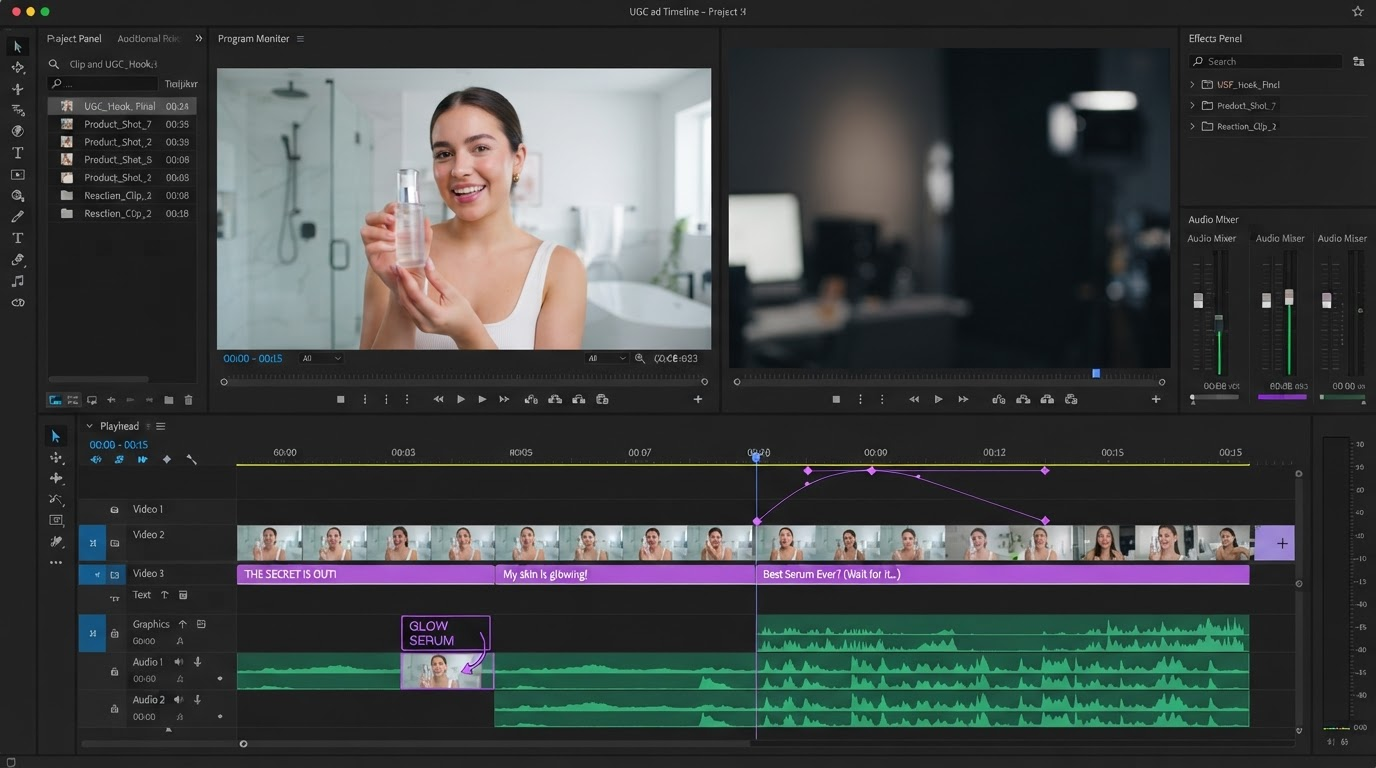
- If the footage is already inside your edit, Resolve's Super Scale or a native resolution re-render usually beats exporting, upscaling, and reimporting.
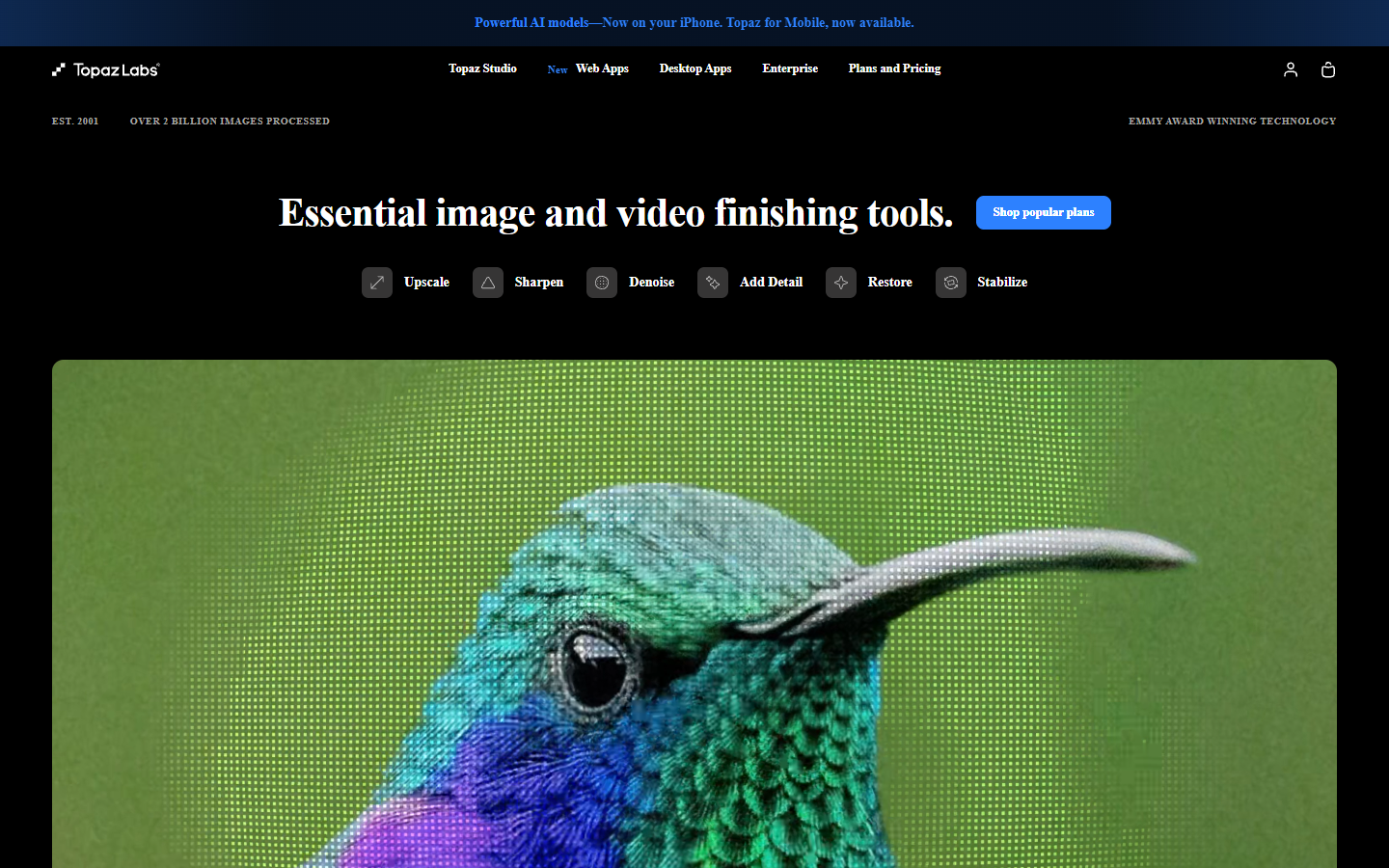
For reference, this is what you are replacing. Topaz Labs still sets the quality bar on upscale, sharpen, denoise, and stabilize, and the models are genuinely good. The question is whether you need that bar every month.
1. Aiarty Video Enhancer
Aiarty is the closest match to Topaz for the specific job of rescuing AI generated video. Text to video models still ship soft faces, mushy hands, and smeared background detail at 720p, and Aiarty's super resolution models were tuned on that kind of source rather than on old camcorder tape. It handles denoising, deblurring, and 4K upscaling locally, with frame interpolation for clips that were generated at 24 fps and need to sit next to 60 fps footage.
Aiarty sells a one time license in the mid 100s, which pays for itself in roughly three months against a Topaz Video subscription.

Where it falls short: it is a batch processor, not an editor. You feed it files and get files back. Anything involving layers, text, or timing happens somewhere else.
2. UniFab Video Enhancer AI
UniFab bundles a large stack of AI video tools behind one purchase, and it is the standard recommendation when the complaint is specifically about renting software. Quality on live action sits close to Topaz on most sources. It is weaker on heavily compressed social reuploads, where it can over sharpen edges and leave a slight ringing halo around high contrast lines.
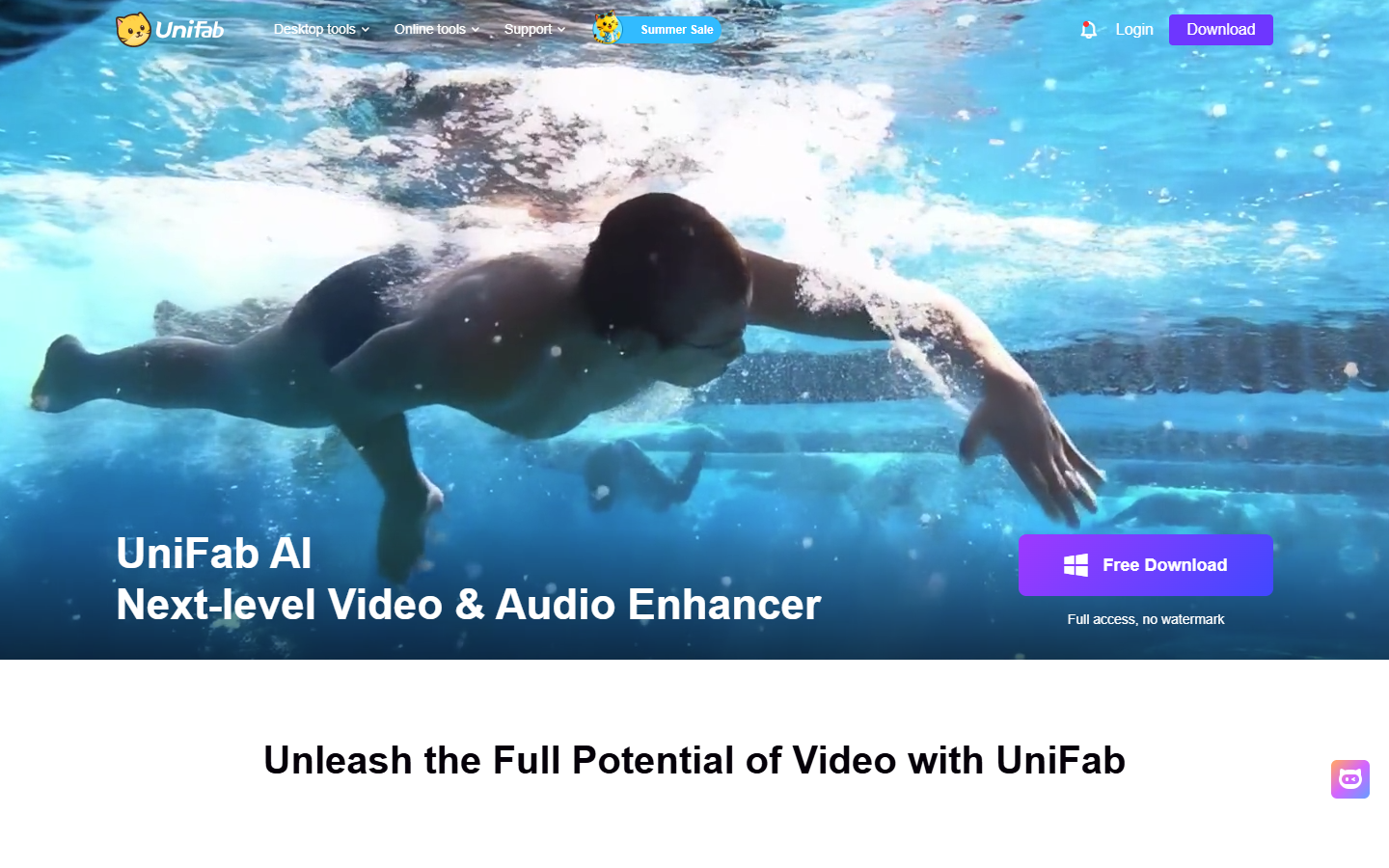
Run a ten second test segment before committing a full clip. If you see halos on hard edges, drop the enhancement strength rather than switching models. UniFab keeps the strength slider on the same panel as the model picker, so this takes about a minute.
3. HitPaw VikPea
VikPea carries the widest model selection of anything in this list: separate models for general footage, animation, faces, low light, and colorization, plus 8K output. That matters when your sources are mixed. A brand archive of 2009 event footage, a 2019 phone video, and a fresh AI generated cutaway all need different treatment, and one universal model will do at least one of them badly.
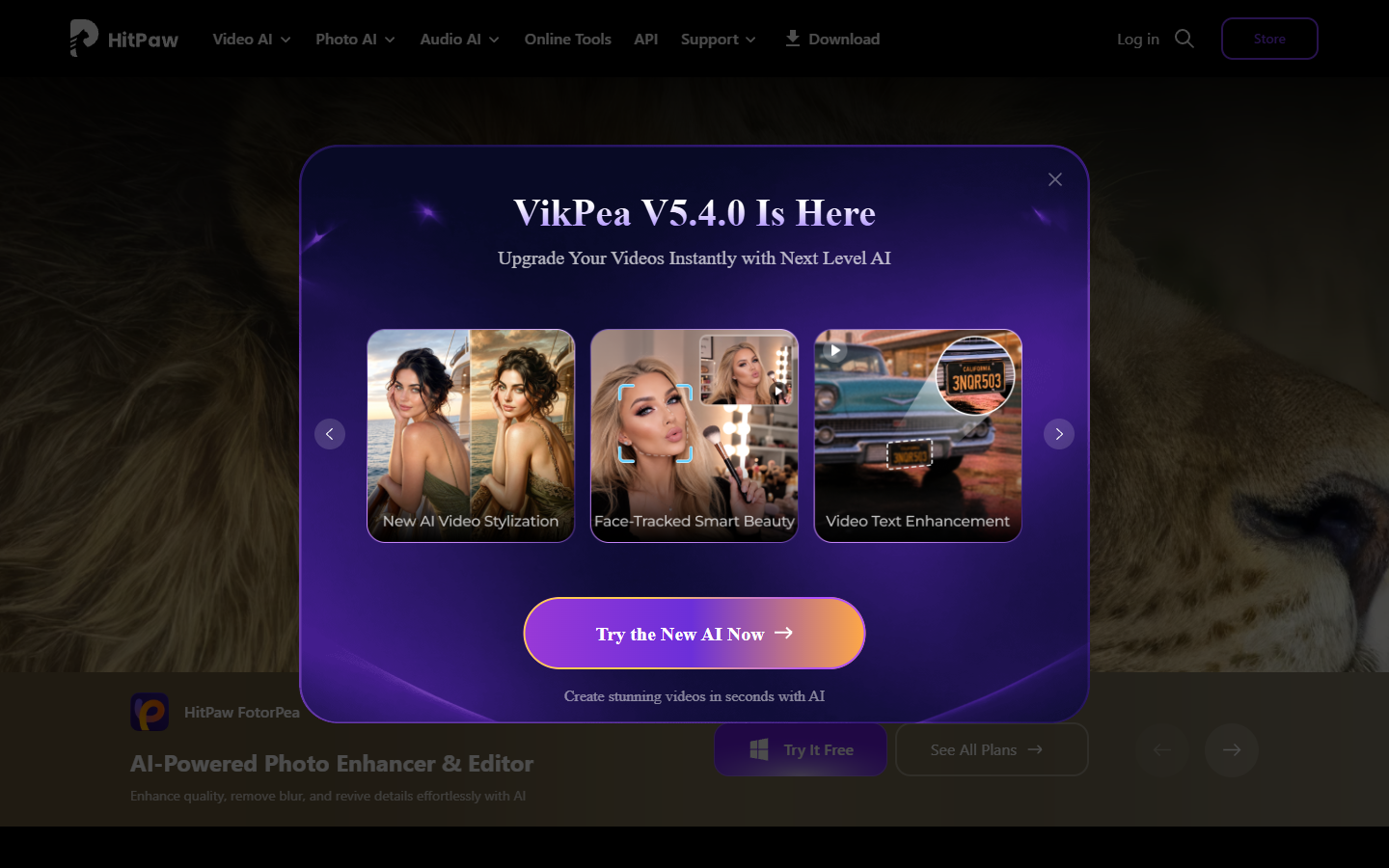
The colorization model is the genuine differentiator here. If you produce anniversary reels, documentary style brand history segments, or a product video that opens on archive material, it removes a step that would otherwise go to a specialist.
4. VideoProc Converter AI
VideoProc Converter AI is built around hardware acceleration, and it is noticeably faster than Topaz on Intel, AMD, and Apple silicon machines that do not have a high end NVIDIA card. It upscales at 2x, 3x, and 4x, restores old footage, and also handles conversion, compression, and stabilization in the same app.
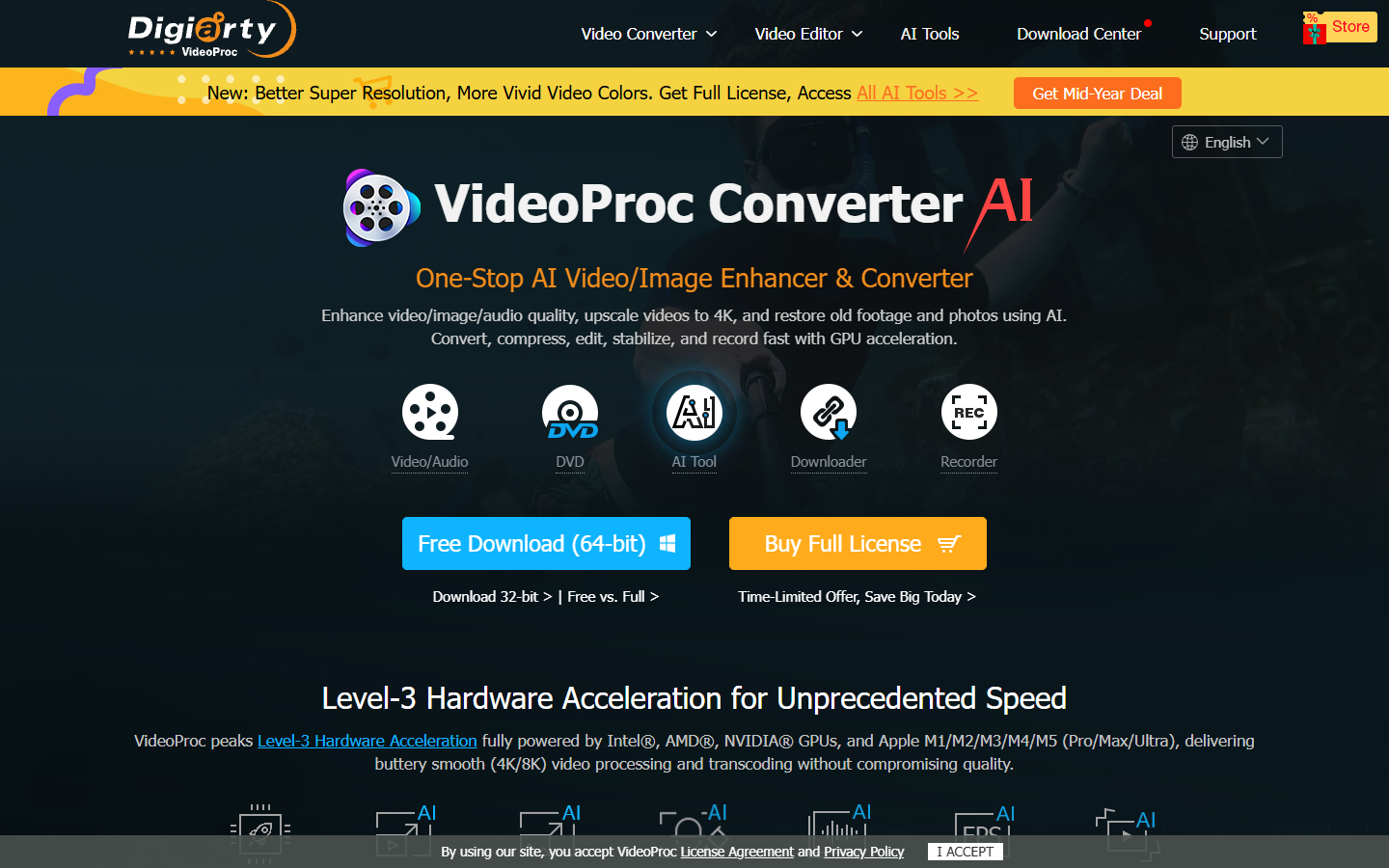
Pick this one when throughput matters more than the last five percent of detail. A social team pushing thirty clips a week is better served by a pass that finishes in four minutes than by one that finishes in forty and looks marginally better on a frame nobody pauses on.
5. Video2X
Video2X is the free option and it is a real one. It splits your video into frames with FFmpeg, runs each frame through Real-ESRGAN for live action or waifu2x for animation, then rebuilds the file with the original audio. It is GPL licensed, runs entirely on your machine, and has a Windows GUI that does not require a command line.
The tradeoff is time. Video2X is meaningfully slower than any paid tool here at comparable quality, and it wants a recent NVIDIA GPU to be usable at all. Treat it as an overnight job for hero shots, not a deadline workflow. There is no interpolation, colorization, or audio processing, so anything beyond resolution stays your problem.
6. DaVinci Resolve Super Scale
If you already cut in DaVinci Resolve, Super Scale is sitting in your clip attributes and costs nothing extra. It is not the strongest model in this list, but it applies inside the timeline, which removes the export, upscale, reimport, relink loop entirely. For 1080p to 4K on reasonably clean source, the gap between Super Scale and a dedicated enhancer is smaller than the gap between a clean workflow and a broken one.
Resolve is a full NLE with a real learning curve. If motion graphics is most of your work rather than color and finishing, a browser based After Effects alternative is a lighter place to keep the animation half of the job.
Where upscaling actually belongs in your pipeline
Here is the part the tool roundups leave out. Upscaling is a source operation, not a finishing operation. It goes on the raw clip, before anything is layered on top of it. Upscale first, then cut, then animate, then caption, then render at your delivery resolution. Run it in the other order and every text layer, mask, and keyframed position value gets scaled by an AI model that has no idea those elements were vector crisp to begin with.
That ordering has a second consequence. If your source is generated rather than shot, the cleanest fix is upstream: generate at the highest resolution the model offers instead of upscaling a 720p result later. Teams running that step through an AI workflow automation platform can pin the output resolution, seed, and model version once and have every clip arrive at the right size, which removes the enhancement pass from the timeline entirely.
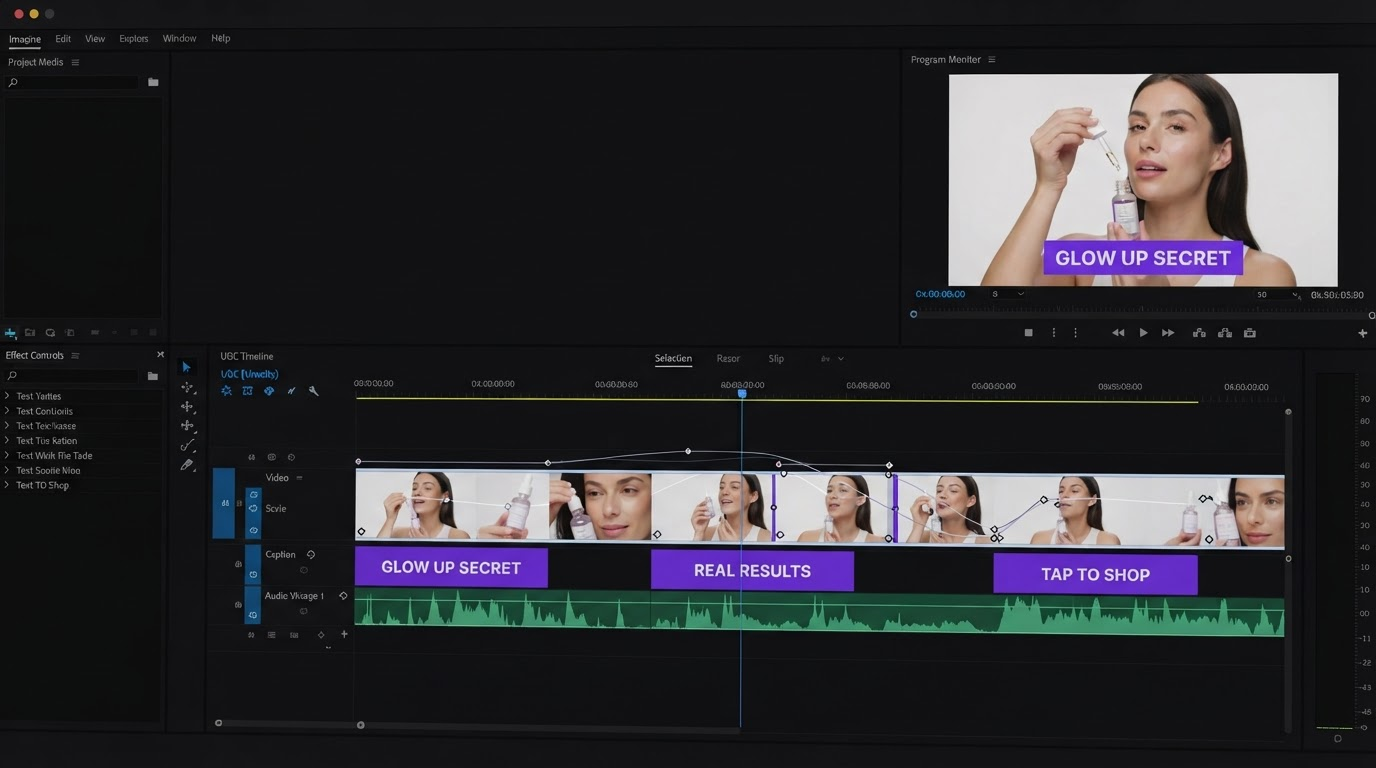
Frame rate deserves the same care. Interpolating 24 fps to 60 fps looks impressive on a pan and looks wrong on anything with motion blur or fast hand movement, because the model invents frames that were never exposed. When you need a smooth ramp, it is safer to change the video speed with proper time remapping on a clip that was shot at a high frame rate than to synthesize the missing frames after the fact.
What to check before you commit a full upscale
Run this list on a ten second segment first. It takes two minutes and saves a wasted overnight render.
- Faces. Upscalers hallucinate skin texture. Check a close up before you check anything else.
- Text in frame. Signage, packaging, and UI recordings are where artifacts show first. If your source is a screen recording, re record at native resolution instead.
- Grain. Denoising removes grain, and cinematic footage often needs it back. Add it after the upscale, not before.
- Edges. Look for halos on high contrast lines. That is over sharpening, and it does not go away in the render.
- Delivery size. A 4K master that gets published as a 1080p vertical reel gained you nothing and cost you an hour.
Captions are the one element that genuinely benefits from a higher resolution master, because burned in text at 1080p gets soft after platform recompression. If your deliverable is captioned social video, generate the video subtitles on the finished cut at the master resolution rather than on the upscaled source file.
For teams, the review loop matters more than the model choice. Two editors running the same clip through two different tools is the most common way a project ends up with mismatched sharpening. Keeping the edit in a collaborative video editing session means the approved version is the one everyone is looking at.
Frequently asked questions
Is there a free Topaz Video AI alternative that is actually usable?
Video2X, yes, with conditions. It is free, open source, and fully local, but it needs a recent NVIDIA GPU and it is slow. Budget it as an overnight job. DaVinci Resolve's free tier also includes Super Scale, which is the fastest free path if you are already editing there.
Why did people start looking for Topaz alternatives in 2026?
Topaz Labs retired perpetual licenses in October 2025 and moved to subscriptions. Users who had bought a license and expected to keep using it were pushed onto monthly or annual plans, which is what drove most of the search volume.
Does upscaling fix blurry AI generated video?
Partly. It recovers apparent sharpness and cleans compression noise, but it cannot add detail the model never generated. Warped hands and unstable faces stay warped and unstable at 4K. Regenerating at a higher resolution beats upscaling every time.
Should I upscale before or after editing?
Before. Upscale the source clip, then bring it into the timeline. Upscaling a finished export runs the AI model over your titles, captions, and graphics, which softens elements that were sharp to start with.
Do I need 4K if I only publish to Instagram and TikTok?
Usually not. Both platforms recompress hard, and a clean 1080p master often survives that better than an over sharpened 4K one. Upscale when the source is genuinely below your delivery resolution, not as a default step.
The short version
Pick Aiarty for AI generated source, UniFab or VideoProc if the subscription is what pushed you out, HitPaw VikPea for mixed archive material, and Video2X if the budget is zero. Then put the upscale where it belongs, at the top of the pipeline, on the raw clip, before a single caption or keyframe gets added. The tool matters less than the order.
Founder of Motionbox and Gluely. Building tools for creators.